Attach
DataWindow objects to the Product window
Where you are
Attach the DataWindow
object to the master DataWindow control
Attach the DataWindow
object to the detail DataWindow control
> Attach
DataWindow objects to the Product window
Now you add two DataWindow objects to the w_products window. These
DataWindow objects are provided for you in the tutor_pb.pbl
library.
-
Right-click w_products in the System Tree and select Edit from
the pop-up menuor
Double-click w_products in the System Tree.
The Window painter displays the w_products window.
-
If the Control List view is not open, select View>Control
List from the View menu.Select the dw_master DataWindow control in the Control List
view.Click the ellipsis button next to the DataObject box in the
Properties view.PowerBuilder displays the Select Object dialog box.
-
Select tutor_pb.pbl in the Application Libraries box.
Select d_prodlist in the DataWindows box and click OK.
The Data Object box in the Properties view of the Window painter
now displays d_prodlist.PowerBuilder associates the d_prodlist DataWindow object with
the dw_master DataWindow control in the w_products window. You see the
headings for the DataWindow object in the Layout view. You might need
to resize the control and/or the window.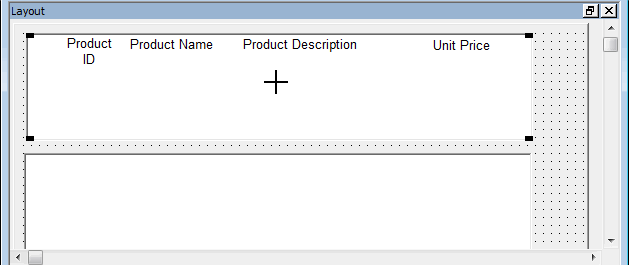
-
Click the dw_detail DataWindow control in the Control List
view.Click the ellipsis button next to the DataObject box in the
Properties view.The Select Object dialog box displays.
-
Select tutor_pb.pbl in the Application Libraries box.
Select d_product in the DataWindows list box and click
OK.PowerBuilder associates the d_product DataWindow object with the
dw_detail DataWindow control. The Layout view now shows the d_product
DataWindow object inside the dw_detail control. The d_product
DataWindow object has seven columns labeled Product ID, Product Name,
Product Description, Size, Color, Quantity, and Unit Price.If necessary, in the Layout view, make the dw_detail control
larger so that you can see all of the columns in the DataWindow
object. You can also enlarge the window to make more room.