Align
the columns and labels
Now you align the columns and labels on the new DataWindow.
-
Select the Zip Code: label in the Design view.
Move left edge of the Zip Code: label’s text close to the
right edge of the company_name column. -
While the Zip Code: label is still selected, use the
Ctrl+click technique to select the Address:, City:, and State:
labels. -
Select Format>Align from the menu bar.
A cascading menu of align options displays.
-
Select the first option (Align left) (
 ).
).PowerBuilder aligns the left edges of the selected objects
with the left edge of the first item you selected (the Zip Code:
label).Selecting an alignment tool from the PainterBar
You can access a drop-down list of alignment tools by
clicking the Align button on PainterBar2. -
Move the zip column so that it is next to the Zip Code:
label. -
Align the address, city, and state columns with the zip
column, just as you aligned the column labels.The DataWindow should now look like this in the Design
view: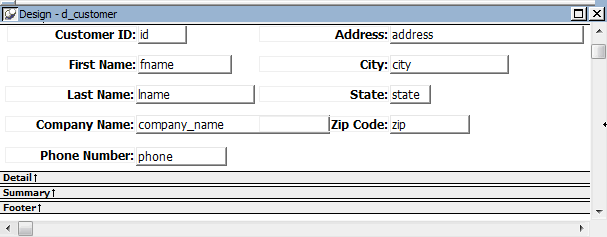
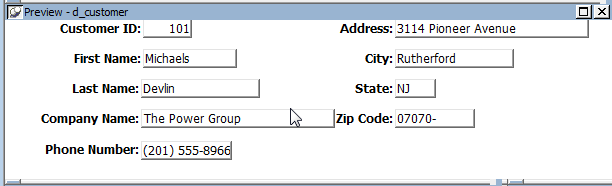
The DataWindow Preview view looks like this: