Adding
pbdom.pbx to your application
The PBDOM classes are implemented in a DLL file with the suffix PBX
(for PowerBuilder extension). The simplest way to add the PBDOM classes to
a PowerBuilder target is to import the object descriptions in the
pbdom.pbx PBX file into a library in the PowerBuilder System Tree. You
can also add the pbdom220.pbd file, which acts as a wrapper for the
classes, to the target’s library search path.
pbdom.pbx is installed to %systemdrive%Program Files (x86)AppeonCommonPowerBuilderRuntime [version] and pbdom220.pbd is installed in %AppeonInstallPath%PowerBuilder [version]IDE. When you are
building a PBDOM application, you do not need to copy pbdom.pbx to
another location, but you do need to deploy it with the application in a
directory in the application’s search path.
To import the descriptions in an extension into a
library:
-
In the System Tree, expand the target in which you want to use
the extension, right-click a library, and select Import PB Extension
from the pop-up menu.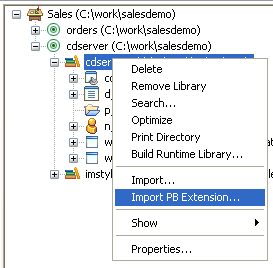
-
Navigate to the location of the PBX file and click Open.
Each class in the PBX displays in the System Tree so that you
can expand it, view its properties, events, and methods, and drag and
drop to add them to your scripts.
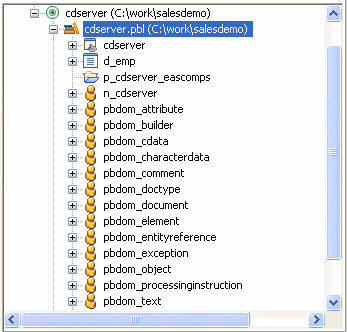
After you import pbdom.pbx, the PBDOM objects display in the
System Tree: