Adding objects to source control
You add an object to your source control project by selecting
the Add To Source Control menu item from the object’s pop-up menu in
the System Tree or in the Library painter. You can also select an
object in a Library painter view and then select Entry>Source
Control>Add To Source Control from the Library painter menu
bar.
What happens when you add objects to
source control
When you add an object to source control, the icon in front of
the object changes from a plus sign to a green dot, indicating that
the object on the local computer is in sync with the object on the
server.
PowerBuilder creates read-only object files in the local root
directory for each PowerBuilder object that you add to source
control. These files can be automatically deleted if you selected
the Delete PowerBuilder Generated Object Files option as a source
control connection property (although you cannot do this for certain
SCC systems such as Perforce or ClearCase).
Read-only attributes are not changed by PowerBuilder if you
later remove a workspace containing these files from source
control.
Adding multiple objects to source
control
If the object you select is a PowerBuilder workspace, a dialog
box displays listing all the objects for that workspace that are not
currently under source control (although the workspace PBW and
target PBLs are not included in the list). If the object you select
is a PowerBuilder target, and at least one of the objects in that
target has not been registered with the current source control
project, PowerBuilder displays a dialog box that prompts you
to:
-
Select multiple files contained in the target
-
Register the target file only
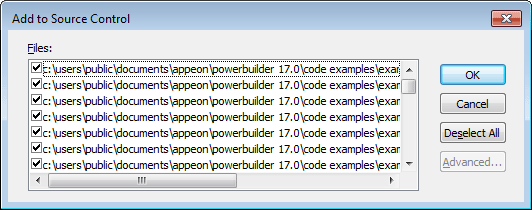
If you select the multiple files radio button, another dialog
box displays with a list of objects to add to source control. A
check box next to each object lets you select which objects you want
to add to source control. By default, check boxes are selected for
all objects that are not in your source control project. They are
not selected for any object already under source control.
You can resize all source control dialog boxes listing
multiple files by placing a cursor over the edge of a dialog box
until a two-headed arrow displays, then dragging the edge in the
direction of one of the arrow heads.
Selecting multiple files from a PBL
If you select Add To Source Control for a target PBL, you
immediately see the list of multiple files from that PBL in the
Add To Source Control dialog box. There is no need for an
intervening dialog box as there is for a target or workspace,
since you cannot register a PBL file to source control from the
PowerBuilder UI — you can only register the objects contained in
that PBL.
You can also select multiple objects to add to source control
from the List view of the Library painter (without selecting a
workspace, target, or PBL).
The Add To Source Control menu item is disabled for all
objects that are registered in source control except workspaces and
targets. If you select the Add To Source Control menu item for a
workspace or target in which all the objects are already registered
to source control, PowerBuilder displays the Add To Source Control
dialog box with an empty list of files. You cannot add objects to
your source control project that are already registered with that
project.
Creating a mapping file for target
PBLs
When you add a target or an object (in a target that is not
under source control) to source control, PowerBuilder creates a PBG
file. A PBG file maps objects in a target to a particular PBL in a
PowerScript or .NET target. One PBG file is created per PBL, so
there can be multiple PBG files for these types of target.
If a PBG file already exists for a target PBL containing the
object you are adding to source control, PowerBuilder checks the PBG
file out of source control and adds the name of the object to the
names of objects already listed in the PBG file. It then checks the
PBG file back into source control.
The PBG files are used by PowerBuilder to make sure that
objects are distributed to the correct PBLs and targets when you
check the objects out (or get the latest versions of the objects)
from source control.
If your source control system requires comments on
registration and check-in, you get separate message boxes for the
PBG file and the objects that you are adding to source control. If
your source control system gives you the option of adding the same
comments to all the objects you are registering, you can still get
additional message boxes for PBG files, since PBG files are checked
in separately.
Because it is possible for PBG files to get out of sync, it is
important that the project manager monitor these files to make sure
they map all objects to the correct PBLs and contain references to
all objects in the source control project. However, you cannot
explicitly check in or check out PBG files through the PowerBuilder
SCC API.
For more information on modifying PBG files, see Editing the PBG file for a source-controlled
target.