Add
SingleLineEdit controls
Now you add two SingleLineEdit controls to the window to allow the
user to enter a user ID and password for connecting to the database. A
SingleLineEdit control is a text box in which the user can enter a
single line of text. SingleLineEdit controls are typically used for the
input and output of data.
-
Select the SingleLineEdit button (
 ) from the drop-down list of controls
or
Select Insert>Control>SingleLineEdit from the menu
bar. -
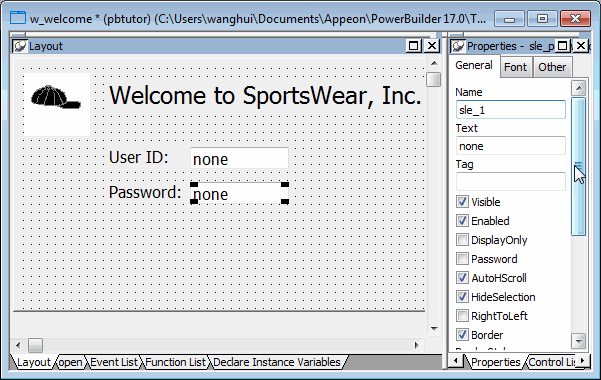
Click to the right of the st_userid StaticText control in the
Layout view.A SingleLineEdit control displays where you clicked.
-
Increase the width of the SingleLineEdit control.
-
Right-click the SingleLineEdit control and select Duplicate
from the pop-up menu.Adjust the position of this SingleLineEdit control so that it
is just to the right of the st_password StaticText control.You should now have two SingleLineEdit controls arranged
vertically to the right of the StaticText controls.