Add
scripts to retrieve data for the DataWindow controls
Where you are
Add a library to the
search path
Create a new ancestor
sheet window
Add user events and
event scripts
> Add scripts to
retrieve data for the DataWindow controls
Adjust a runtime
setting for sheet window size
The scripts you just typed have no effect on the dw_master
DataWindow control, but now that you have a script for the ue_retrieve
event, you need only trigger this event to retrieve data into the
dw_master DataWindow.
You trigger the ue_retrieve event from the sheet window Open event.
This retrieves data into the dw_master DataWindow as soon as the window
(or one of its descendant windows) opens. Then you add a script for the
RowFocusChanged event of dw_master to retrieve data into the dw_detail
DataWindow. The RowFocusChanged event is triggered each time the focus is
changed inside the dw_master DataWindow.
RowFocusChanged occurs upon DataWindow display
The RowFocusChanged event also occurs when the w_master DataWindow
is first displayed. This allows the application to retrieve and display
detail information for the first row retrieved in the master
DataWindow.
Here is how the script works for the w_master_detail_ancestor window
and its descendants when you are done:
-
When a sheet window first opens, a list (of all customers or
products) displays in the top DataWindow control. Detail information
for the first item in the list displays in the bottom DataWindow
control. -
When a user moves through the list in the top DataWindow control
using the up arrow and down arrow keys or by clicking in a row, the
details for the current row display in the bottom DataWindow
control.
-
Select open from the second drop-down list box in the Script
view for w_master_detail_ancestor.The Open event has a purple script icon indicating it has an
ancestor script. If you check the ancestor script, you see that it
calls the ue_postopen event and posts it to the end of the window’s
message queue. -
Type these new lines in the script area for the
w_master_detail_ancestor Open event:123dw_master.settransobject ( sqlca )dw_detail.settransobject ( sqlca )this.EVENT ue_retrieve()The first two lines tell the dw_master and dw_detail DataWindows
to look in the SQLCA Transaction object for the values of the database
variables. The third line triggers the ue_retrieve event. The pronoun
This refers to the current object. In this example, the
w_master_detail_ancestor window is the current object. -
Select dw_master in the first drop-down list box of the Script
view. -
Select rowfocuschanged in the second drop-down list box.
Read the event name carefully
Make sure you select the RowFocusChanged event, and not the
RowFocusChanging event.You now add a script for the RowFocusChanged event of the
dw_master DataWindow control. This script sends a retrieval request
and the ID number of the selected row to the dw_detail DataWindow
control. -
Type this line in the script area for the RowFocusChanged
event:1long ll_itemnumThis line declares the local variable ll_itemnum (l is a letter,
not a number), which has the long data type. -
Type this line below the variable declaration line you just
typed:1ll_itemnum = this.object.data[currentrow, 1]Use square brackets
The expression shown above requires square brackets, not
parentheses.This line uses a DataWindow data expression to obtain the item
number in column 1 of the currently selected row of dw_master. It
stores the number in the variable ll_itemnum.CurrentRow is an argument passed to the RowFocusChanged event
that specifies the current row in the DataWindow control. The current
row is the row the user has selected by clicking or by scrolling with
the arrow or tab keys. -
Type these lines below the data expression line you just
typed:123IF dw_detail.Retrieve(ll_itemnum) = -1 THENMessageBox("Retrieve","Retrieve error-detail")END IFThis group of lines sends a retrieval request to the dw_detail
DataWindow along with the argument the DataWindow expects (an ID
number stored in the ll_itemnum variable). The IF statement that
encloses the Retrieve function checks for successful completion. If
the retrieval operation fails, it displays an error message
box.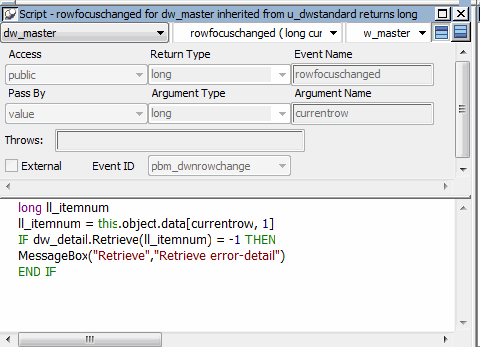
-
Click the Save button in PainterBar1.
-
Click the Close button in PainterBar1.
PowerBuilder compiles the script you typed and saves it.
-
Click the Full Build Workspace button in the PowerBar.
It is a good idea to rebuild all your objects after modifying an
ancestor object. -
Close the Output window.