Add
items to the new menu
Next you add items to the Edit menu of the menu you just inherited
from m_pbtutor_sheet. You use the WYSIWYG and Properties views.
-
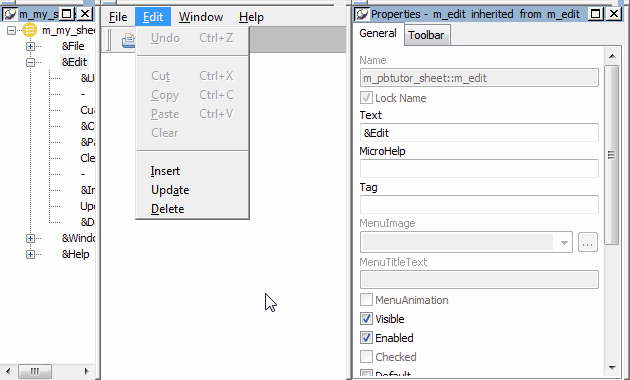
Click the Edit menu in the WYSIWYG view for the new
menu.The list of Edit menu items appears just as it would in a
runtime application. All items of the Edit menu are visible but
disabled (they appear gray — but not dithered — in the WYSIWYG
view). -
Right-click a menu item under the Edit menu in the WYSIWYG
view.Select Insert Menu Item At End from the pop-up menu.
The cursor moves into a blank box that appears at the end of
the Edit menu list. -
Click in the box that appears at the bottom of the menu, and
type – (hyphen). Press Enter.The hyphen changes into a separator line. In the Properties
view, the menu item name changes to m_0. Even the separator lines
between menu items must have unique names. Other separator lines in
the menu have a unique index number preceded by the prefix
m_dash. -
Clear the Enabled check box in the Properties view for the new
separator line. -
Right-click the new separator line in the WYSIWYG view.
-
Select Insert Menu Item At End from the pop-up menu.
-
Type &Insert in the box that appears under the new
separator and press Enter.The menu item name is set automatically to m_insert. If
PowerBuilder displays a message that the default name is incorrect,
it suggests an alternative name. If this occurs, click OK to accept
the suggested name.Alternative method of inserting menu item names
You can type &Insert in the Text box in the Properties
view instead of typing it in the box that appears in the WYSIWYG
view. In this case, you do not need to press Enter afterwards.
First, however, you have to clear the Lock Name check box if the
Name box is grayed (otherwise, the menu name does not reset to
m_insert). -
Type Insert a row in the MicroHelp box in the Properties
view.The new menu item is visible and enabled by default.
The text Insert a row displays in the MicroHelp line at the
bottom of the application window whenever the user selects the menu
item. -
Repeat steps 5 and 6 for the following menu items:
Menu item
MicroHelp text
Upd&ate
Update the database
&Delete
Delete the current row
You add Edit menu items for updating and deleting database
records. Even though it is not enabled, the Undo item already uses
the letter U as an accelerator key, so you should not use the same
accelerator key for the Update menu item. Instead, you use the
letter A for this purpose.