Add
code to the OK button Clicked event
As is often the case when you are developing production
applications, you get some of the connection properties from an
initialization file and some from user input.
For the tutorial application, you should not get the user ID and
password from the tutorial INI file. Get them directly from the user in
the login window and then pass the database information in a
script.
-
Make sure you are looking at the Clicked event script for the
cb_ok control.This is the script in which you added the call to the
Connection Service object. -
Click before the IF-THEN statement.
Type the following lines:
1234567//Local variable declarationsstring ls_database, ls_userid, ls_password//Assignment statementsls_userid = Trim ( sle_userid.text )ls_password = Trim ( sle_password.text )ls_database="ConnectString='DSN=PB Demo DB V2021;"With these lines you declare local variables and assign them
values. Do not use blank spaces around the = signs in the
ConnectString text. Do not worry about the lone single quotation
mark. You will add a single quotation mark in the next step to
complete the connection script.Using AutoScript to help code the assignment
statementsWhen you type the assignment statements, if you type the
letters before the underscore in a variable name and then press
Ctrl+space, AutoScript pops up a list of possible completions. Use
the arrow keys to move to the correct completion and the Tab key
to paste it into your script. If you type the underscore and the
first letter after the underscore and then press Ctrl+space,
AutoScript pastes the completion directly into your script, as
long as there is a unique completion.The Trim function removes leading and trailing spaces from the
user ID and password values passed as arguments to the function from
the SingleLineEdit boxes on the login window. -
Click after the lines you just added (which follow the CREATE
statement) but before the IF-THEN statement.Type the following lines:
12345//Instantiate with user-entry valuesSQLCA.userid = ls_useridSQLCA.dbpass = ls_passwordSQLCA.dbparm = ls_database + "UID=" + &ls_userid + ";PWD=" + ls_password + "'"These lines instantiate SQLCA parameters with values from the
SingleLineEdit text boxes.The lines must be added to the script after the CREATE
statement to keep them from being overwritten with blank values from
the Constructor event of the connection service manager. They must
be added before the IF-THEN statement or their values are not used
by the Transaction object when it is called by the of_ConnectDB
function of the connection service manager.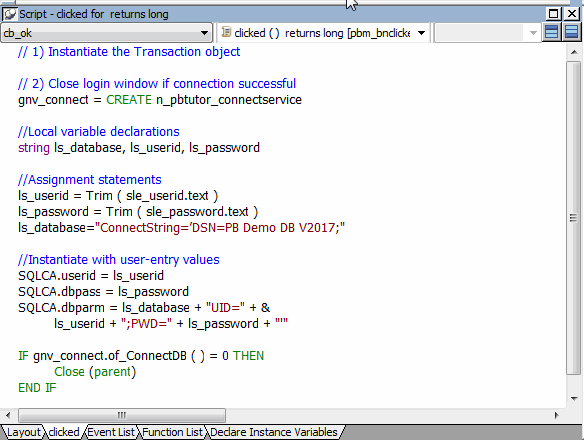
-
Click the Compile button in PainterBar2
or
Right-click inside the Script view and click Compile in the
pop-up menu.The script should compile without error. If you get an error
message, make sure you have typed object and function names
correctly.