Add
breakpoints in application scripts
Where you are
> Add breakpoints
in application scripts
Set a watch and a
conditional breakpoint
Now you open the Debugger and add breakpoints to examine the
behavior of the login and Customer windows. When PowerBuilder runs the
application in debug mode, it stops just before executing a line
containing a breakpoint.
When you insert breakpoints in a script, you should select lines
that contain executable statements. If you try to set a breakpoint in
variable-declaration lines, comment lines, or blank lines, PowerBuilder
sets the breakpoint at the next executable line.
-
Click the Debug button (
 ) in the PowerBar.
 PowerBuilder opens the Debugger. There are three stacks of
tabbed panes in the default view layout scheme. The Source view is
visible in a single pane at the top left of the Debug window. The
Source Browser view is open in the pane at the top right.If the Debug window looks different
If you have opened the Debug window before and opened, moved,
or closed any views, your display may look different. To restore the
default view layout scheme, select View>Layouts>Default from
the menu bar.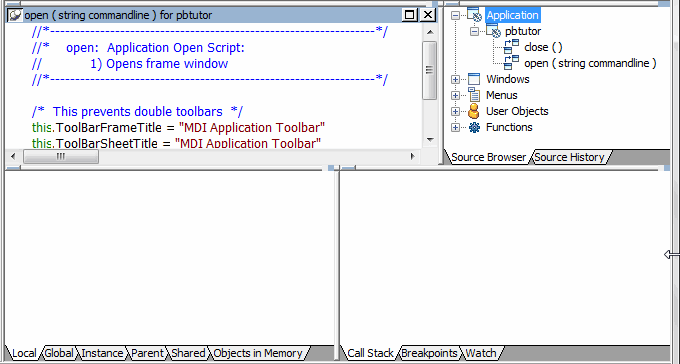
The source code for the application Open event displays in the
Source view at top left. If it does not display, expand the
Application node in the Source Browser view’s tree view and
double-click the Open event under the pbtutor application. -
In the Source view, double-click the line containing the
following assignment statement:1this.ToolBarSheetTitle = "MDI Application Toolbar"A black breakpoint symbol displays at the start of the line to
show that a breakpoint has been set on the statement.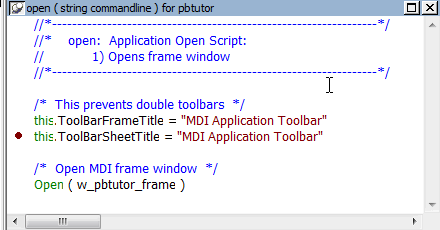
-
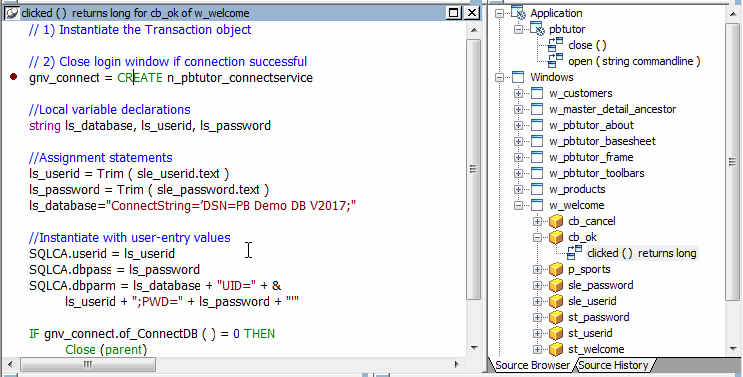
Expand the following node in the Source Browser view:
Windows>w_welcome>cb_okThe Source Browser view lists only events that have been coded.
The only event for the login window OK button is the Clicked
event. -
Double-click the Clicked event for the cb_ok button in the
Source Browser view.The code for the Clicked event displays in the Source
view. -
Double-click the following line:
12gnv_connect = CREATE &n_pbtutor_connectserviceA breakpoint symbol displays at the start of the line.
-
Double-click w_master_detail_ancestor in the Source Browser
view. -
Double-click dw_master, then rowfocuschanged.
PowerBuilder displays the script for the RowFocusChanged event
of the dw_master DataWindow control in the Source view. -
Double-click this line:
1IF dw_detail.Retrieve(ll_itemnum) = -1 THENA breakpoint symbol displays at the start of the line.
-
Select the Breakpoints tab in the lower-right stack.
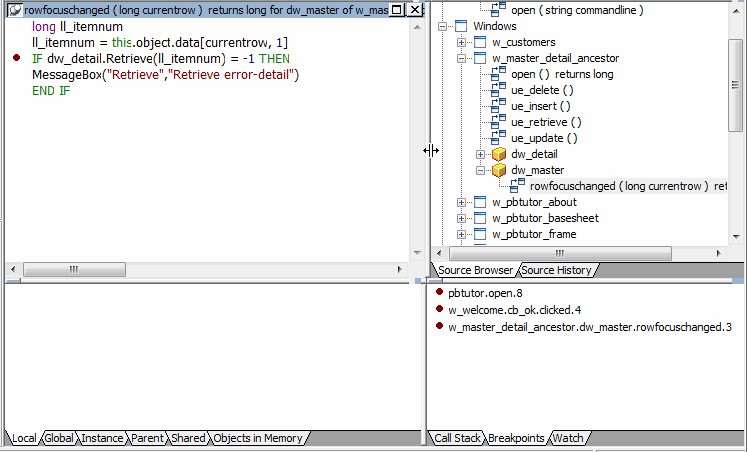
You should see the breakpoints you set in the Breakpoints view.
To complete this lesson, you need to have these breakpoints set
correctly.
If you have additional breakpoints
You can clear any excess breakpoints using the pop-up menu in the
Breakpoints view.