Add a
Picture control
Now you add a Picture control to the login window.
-
Select the Picture button (
 ) from the drop-down list of controls
or
Select Insert>Control>Picture from the menu bar.
-
Click inside the rectangular window in the Layout view.
A Picture control displays at the selected location. At the
same time you add the control, the Properties view switches from
displaying the window properties to displaying the control
properties.If you do not see the Properties view, select
View>Properties from the menu bar. If the Properties view does
not display the control properties, click the picture control in the
Layout view.How to delete controls
If you add a control to the window and later decide you do
not want it, select the control and press the Delete key. This
deletes the control and its scripts. -
Select the text p_1 in the Name text box on the General tab of
the Properties view.Type p_sports in the Name text box.
This names the Picture control. The prefix p_ is standard for
Picture controls. -
Click the ellipsis button next to the PictureName text
box.The Select Image dialog box displays.
-
Select the “Use a custom image” option, click the ellipsis button and navigate to the Tutorial directory if it is not already selected.
Select the tutsport.bmp file.
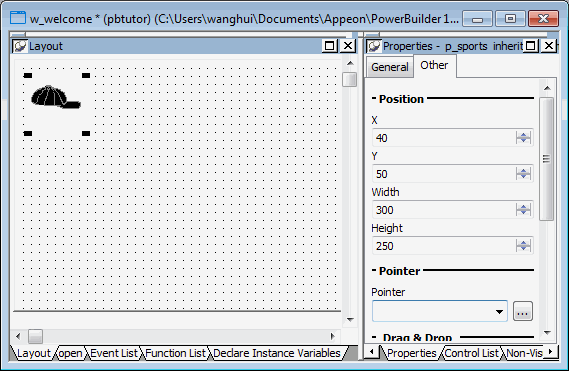
The bitmap you selected appears in the control you added to
the Layout view. The Visible, Enabled, and OriginalSize check boxes
are selected by default in the Properties view. -
Make sure the picture control is selected in the Layout
view.Click the Other tab in the Properties view.
Type 40 in the X text box and 50 in the Y text box.
You can use the spin controls in the X and Y text boxes to
enter these values. You might want to adjust the position of the
picture control again after you preview the window at the end of
this lesson. -
Type 300 in the Width text box and 250 in the Height text
box.
You change the size of the picture control. You might want to
adjust the picture size again after you preview the window.