Add a
DataWindow control for the master DataWindow
Now you add a DataWindow control (saved as the user object,
u_dwstandard) to the w_master_detail_ancestor window. It serves as the
master DataWindow for the ancestor window and its descendants.
How to create a user object like u_dwstandard
You can create a user object based on a DataWindow control by
clicking the New button and selecting Standard Visual from the PB Object
page of the New dialog box. This opens the Select Standard Visual Type
dialog box. You can then select DataWindow in the Types text box and add
user events as needed. You see how to add user events later in this
tutorial.
-
Double-click w_master_detail_ancestor in the System Tree.
The w_master_detail_ancestor window opens in the Window painter.
You generated this window with the Template Application wizard. The
wizard also created and attached a menu to this window,
m_pbtutor_sheet. The menu is indicated in the Properties view for the
window. You change this property later. -
Make sure the Layout view is visible in the Window
painter. -
Expand tutor_pb.pbl by double-clicking it in the System
Tree. -
Drag u_dwstandard from the System Tree to the
w_master_detail_ancestor window in the Layout view. -
Widen the window so that the control is completely visible
inside the window.PowerBuilder creates a DataWindow control that inherits its
definition from the user object.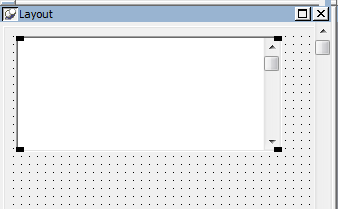
-
Make sure the new control is selected in the Layout view.
Small black squares at the corners indicate that the control is
selected. The Properties view displays the properties of the selected
control. -
Select the text dw_1 in the Name text box in the Properties
view. -
Type dw_master in the Name text box.
Select the VScrollBar check box.
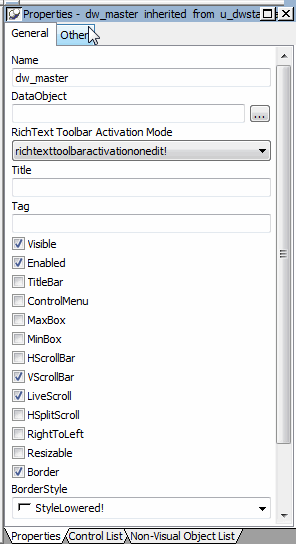
PowerBuilder adds a vertical scroll bar to the control. It also
changes its name to dw_master. The prefix dw_ is standard for
DataWindow controls.