Add a
DataWindow control for the detail DataWindow
Now you add a second DataWindow control that is the detail
DataWindow in the application.
-
Resize the window so that there is room for a second DataWindow
control below the first.Drag u_dwstandard from the System Tree to below the dw_master
control in the Layout view.PowerBuilder creates another DataWindow control that inherits
its definition from the user object u_dwstandard. -
Move the DataWindow control so that it is completely visible
inside the window.If you need to, you can maximize the Layout view and enlarge the
window object inside it to make more room for the DataWindow
controls.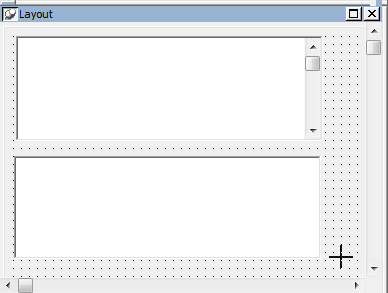
-
Make sure that the new control is selected in the Layout
view.The Properties view displays the properties of the selected
control. -
Replace the text dw_1 in the Name text box in the Properties
view withdw_detail
PowerBuilder changes the name of the control to
dw_detail.