Accessing the RibbonBar items in the hierarchy
The RibbonBar control is a container. The RibbonBar control as
well as the item controls it contains have a hierarchical relationship.
The item controls cannot exist independently and must be placed on top
of the parent object; therefore, to get an item control, you need to
search from the top level (RibbonBar control), or to search by tag. The
control you get is a copy (not a reference), and after the copy is
modified, it needs to be set back to the parent object, and then to the
RibbonBar control, for the change to take effect.
To access a ribbon item, you need to understand the hierarchical
structure of the RibbonBar control and its item controls.
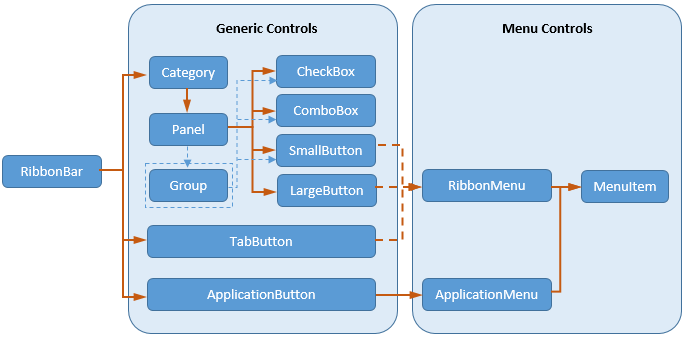
To get a copy of a ribbon item control, use
the following two ways:
-
(Recommended) You can get a
copy of a ribbon item through its tag value.For example, suppose RibbonBar
rbb_1
contains a Category and the Category contains a Panel and the Panel
contains a CheckBox (its Tag value is
CheckBoxTag1). You can access the
CheckBox with the following scripts.12345RibbonCheckBoxItem lr_CheckBox1if <code>rbb_1</code>.GetItemByTag ("CheckBoxTag1", lr_CheckBox1) = 1 Thenlr_CheckBox1.enabled = False...End If -
You can get a copy of a ribbon item according to its
hierarchical level:RibbonBar > Category > Panel [> Group] >
CheckBox/ComboBoxRibbonBar > Category > Panel [> Group] >
LargeButton/SmallButton [> RibbonMenu > MenuItem]RibbonBar > TabButton [> RibbonMenu >
MenuItem]RibbonBar > ApplicationButton > ApplicationMenu >
MenuItem (Master and/or Recent)Panel can directly contain CheckBox, ComboBox, LargeButton,
and SmallButton. Group cannot contain LargeButton. ApplicationMenu
can contain a list of master menu items and a list of recent menu
items. For more, see Introduction to RibbonBar
items.For example, suppose RibbonBar
rbb_1
contains a Category and the Category contains a Panel and the Panel
contains a CheckBox. You first get a copy of the Category from
RibbonBarrbb_1, and then get a copy of the
Panel from the copy of the Category, finally get a copy of the
CheckBox from the copy of the Panel. The code will look like
this:123456789101112RibbonCategoryItem lr_CategoryRibbonPanelItem lr_PanelRibbonCheckBoxItem lr_CheckBoxIf <code>rbb_1</code>.GetcategoryByIndex (1, lr_Category) = 1 ThenIf <code>rbb_1</code>.GetChildItemByIndex (lr_Category.itemhandle, 1, lr_panel) = 1 ThenIf rbb_1.GetChildItemByIndex (lr_panel.itemhandle, 1, lr_CheckBox) = 1 Thenlr_CheckBox.enabled = False...End IfEnd IfEnd If
To set changes for a ribbon item control,
use different ways according to different item
controls:
-
For items in the Generic
Controls category in the chart, including
ApplicationButton, TabButton, Category, Panel, Group, CheckBox,
ComboBox, LargeButton, and SmallButton, you can directly apply
changes to the RibbonBar.For example, if you have changed the property of the CheckBox
lr_CheckBox, to apply this change to the
RibbonBarrbb_1, you write scripts like
this:123…rbb_1.SetItem (lr_CheckBox)…Or
123…rbb_1.SetCheckBox (lr_CheckBox.ItemHandle, lr_CheckBox)…For differences between SetItem and SetCheckBox, refer to
SetItem in PowerScript Reference. -
For ApplicationMenu (its parent object is ApplicationButton)
and RibbonMenu (its parent object can be TabButton, LargeButton, or
SmallButton) in the Menu Controls
category in the chart, you must first apply changes to the parent
object and then to the RibbonBar.For example, if you have changed the text of the application
menulr_ApplicationMenu, to apply this change
to the RibbonBarrbb_1, you write scripts
like this:1234…ApplicationButton1.SetMenu (lr_ApplicationMenu)rbb_1.SetItem (ApplicationButton1) //or rbb_1.SetApplicationButton (ApplicationButton1)… -
For MenuItem (its parent object can be ApplicationMenu or
RibbonMenu) in the Menu Controls
category in the chart, you must first apply changes to the parent
object, then to the parent object at one level higher, and finally
to the RibbonBar.For example, if you have changed the text of the menu
lr_MenuItemwhich is a dropdown of a large
button, to apply this change to the RibbonBar
rbb_1, you write scripts like this:12345…Menu1.SetItem (lr_MenuItem)LargeButton1.SetMenu (Menu1)rbb_1.SetItem (LargeButton1) //or rbb_1.SetLargeButton (LargeButton1.itemhandle, LargeButton1)…
Example 1:
Suppose RibbonBar rbb_1 contains a Category
and the Category contains a Panel and the Panel contains a CheckBox (its
Tag value is CheckBoxTag1). The following
code gets the CheckBox by tag and then changes its Enabled
property:
|
1 2 3 4 5 6 7 |
RibbonCheckBoxItem lr_CheckBox1 if <code>rbb_1</code>.GetItemByTag ("CheckBoxTag1", lr_CheckBox1) = 1 Then //Changes the Enabled property of CheckBox lr_CheckBox1.enabled = False //For the change to take effect, sets the change to the RibbonBar control rbb_1</code>.SetItem (lr_CheckBox1) //or <code>rbb_1</code>.SetCheckBox (lr_CheckBox1.itemhandle, lr_CheckBox1) End If |
Example 2:
Unlike the PowerBuilder traditional menu, to add/delete/modify a
ribbon menu item, you need to first get a copy of the menu item and its
parent object, make changes to the menu item, then set changes back to
its parent object, and finally to the RibbonBar control.
The following code example changes the text of a menu item
dynamically.
|
1 2 3 4 5 6 7 8 9 10 11 12 13 14 15 16 17 18 19 |
//Gets a copy of ApplicationButton from RibbonBar control rbb_1 rbb_1.GetApplicationButton(buttonitem) //Gets a copy of ApplicationMenu from the copy of ApplicationButton li_rc = buttonitem.getMenu( appmenu ) li_count = appmenu.GetMasterItemCount () FOR li_index = 1 TO li_count //Gets a copy of MenuItem from the copy of ApplicationMenu li_rc = appmenu.GetMasterItem( li_index, item ) IF item.tag = 'Tools' THEN //Changes the text of a menu item item.Text = 'Tools Test' //For the change to take effect, sets the copy of MenuItem back to the copy of ApplicationMenu li_rc = appmenu.SetMasterItem( li_index, item ) //Then sets the copy of ApplicationMenu back to the copy of ApplicationButton li_rc = buttonitem.Setmenu( appmenu ) //Finally sets the copy of ApplicationButton back to the RibbonBar control li_rc = rbb_1.SetApplicationbutton( buttonitem ) END IF NEXT |