Accessing the production license code (Order Owner only)
Accessing the production license code can only be done by your
order’s designated Order Owner or License Administrator. The Order Owner /
License Administrator must then share the code with the developer(s) who
will apply it to the PowerServer project. If you‘re a developer, please
share this tutorial with the Order Owner / License Administrator, so that
they learn how to provide the production license code to the user(s) who
will be applying the license.
Next are the steps the Order Owner has to follow to access the
production license code:
-
Access https://www.appeon.com.
-
Make sure you are logged in to your Appeon account.
-
Hover over “My Account” and
select “User Center” (or use this direct link).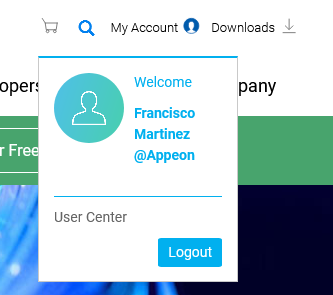
-
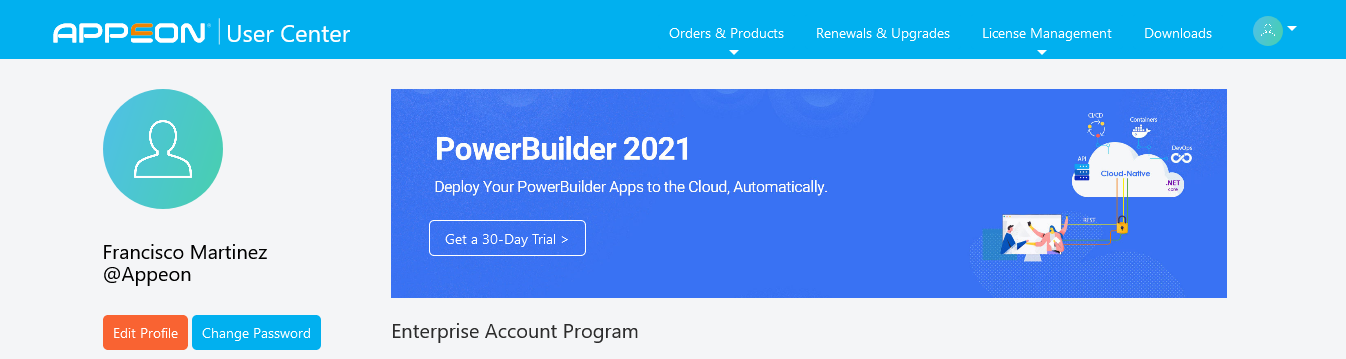
You will be led to the following page:
-
Click on “License Management”
on the top-right of the page. Then, under “PowerServer” click on “Generate License Code“.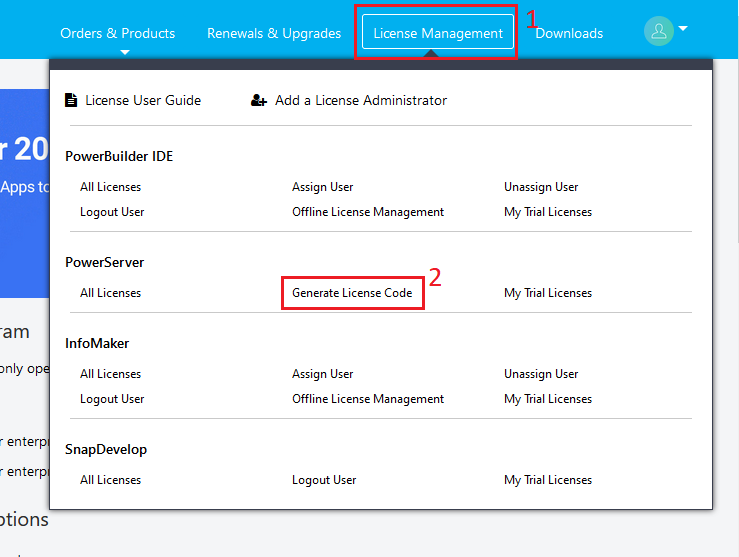
Note: If you do not see the
“Generate License Code” option, this
means your Appeon account does not own a PowerServer license.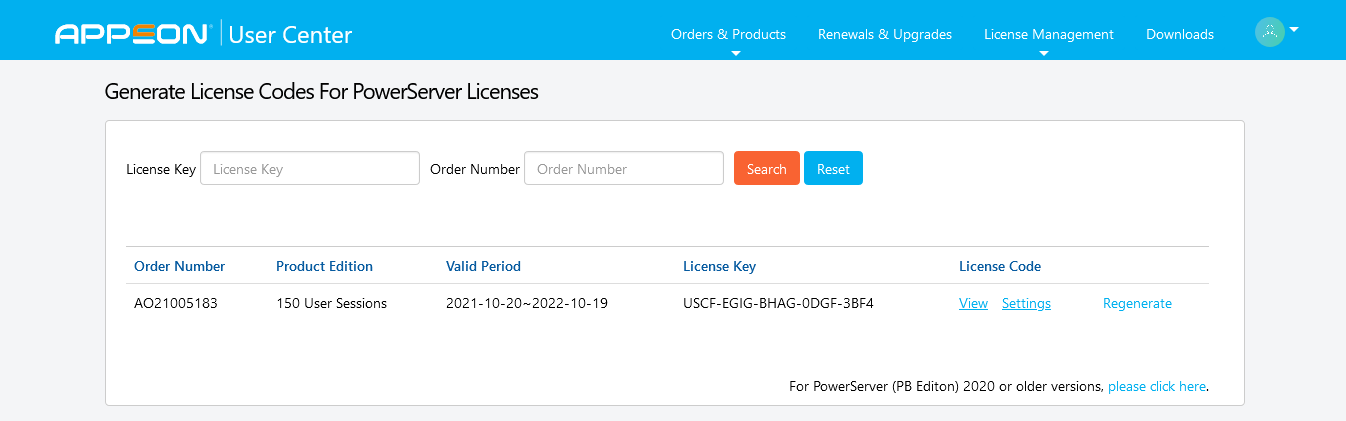
-
In this page, the Order Owner / License Administrator will be
able to view all PowerServer licenses (production licenses and
developer licenses) managed by them. -
The production license of PowerServer will have a “View” option under the “License Code Column“.
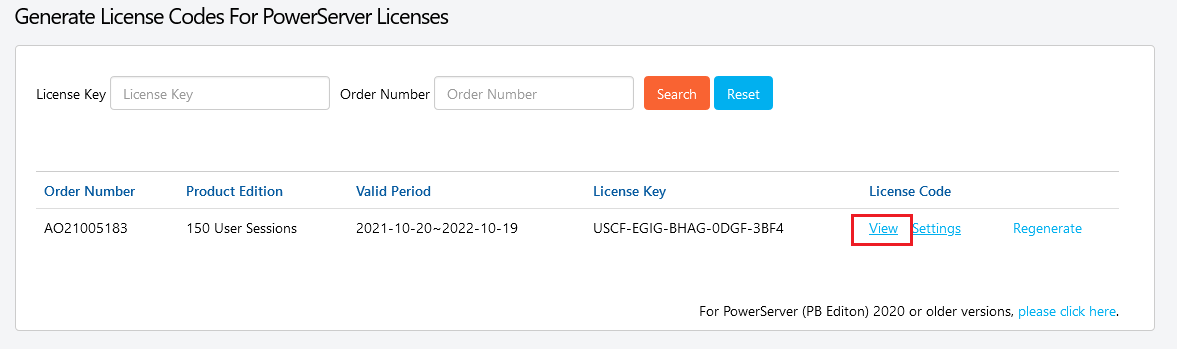
-
Clicking on “View” will show
the following window.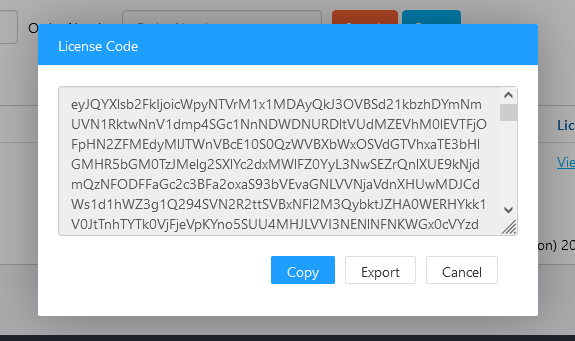
-
Click “Export” and download the
license file.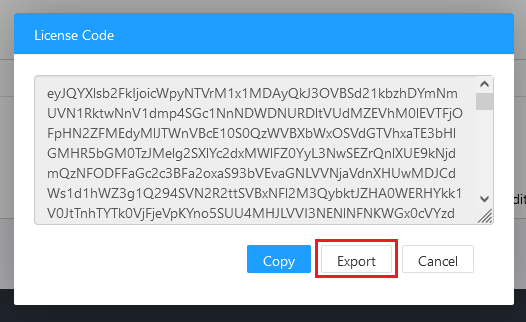
You will be prompted to download the file:
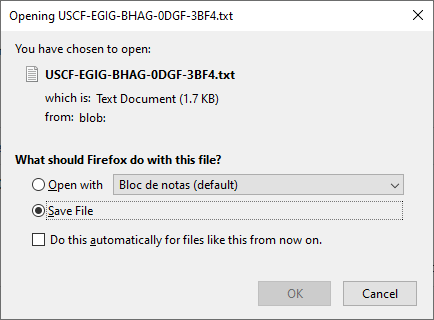
The Order Owner/License Administrator must then share this file with
the user(s) who will apply the production license to the project.
Note: Do not change the name of
this file, for it’s the License Key value that will be used to apply the
license, as described in the following steps.