About
TreeView controls
TreeView controls provide a way to represent hierarchical
relationships within a list. The TreeView provides a standard interface
for expanding and collapsing branches of a hierarchy:
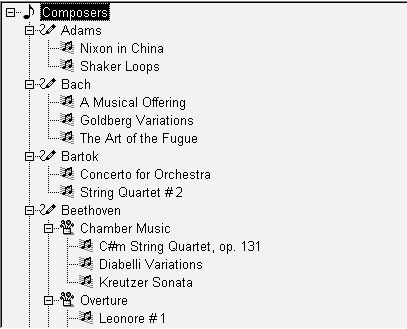
When to use a TreeView
You use TreeViews in windows and custom visual user objects. Choose
a TreeView instead of a ListBox or ListView when your information is more
complex than a list of similar items and when levels of information have a
one-to-many relationship. Choose a TreeView instead of a DataWindow
control when your user will want to expand and collapse the list using the
standard TreeView interface.
Hierarchy of items
Although items in a TreeView can be a single, flat list like the
report view of a ListView, you tap the power of a TreeView when items have
a one-to-many relationship two or more levels deep. For example, your list
might have one or several parent categories with child items within each
category. Or the list might have several levels of subcategories before
getting to the end of a branch in the hierarchy:
|
1 2 3 4 5 6 7 8 9 10 11 |
Root Category 1 Subcategory 1a Detail Detail Subcategory 1b Detail Detail Category 2 Subcategory 2a Detail |
Number of levels in each
branch
You do not have to have the same number of levels in every branch of
the hierarchy if your data requires more levels of categorization in some
branches. However, programming for the TreeView is simpler if the items at
a particular level are the same type of item, rather than subcategories in
some branches and detail items in others.
For example, in scripts you might test the level of an item to
determine appropriate actions. You can call the SetLevelPictures function
to set pictures for all the items at a particular level.
Content sources for a
TreeView
For most of the list types in PowerBuilder, you can add items in the
painter or in a script, but for a TreeView, you have to write a script.
Generally, you will populate the first level (the root level) of the
TreeView when its window opens. When the user wants to view a branch, a
script for the TreeView’s ItemPopulate event can add items at the next
levels.
The data for items can be hard-coded in the script, but it is more
likely that you will use the user’s own input or a database for the
TreeView’s content. Because of the one-to-many relationship of an item to
its child items, you might use several tables in a database to populate
the TreeView.
For an example using DataStores, see Using DataWindow information to
populate a TreeView.
Pictures for items
Pictures are associated with individual items in a TreeView. You
identify pictures you want to use in the control’s picture lists and then
associate the index of the picture with an item. Generally, pictures are
not unique for each item. Pictures provide a way to categorize or mark
items within a level. To help the user understand the data, you
might:
-
Use a different picture for each level
-
Use several pictures within a level to identify different types
of items -
Use pictures on some levels only
-
Change the picture after the user clicks on an item
Pictures are not required
You do not have to use pictures if they do not convey useful
information to the user. Item labels and the levels of the hierarchy may
provide all the information the user needs.
Appearance of the TreeView
You can control the appearance of the TreeView by setting property
values. Properties that affect the overall appearance are shown in the
following table.
|
Properties |
Effect when set |
|---|---|
|
HasButtons |
Puts + and – buttons before items that have children, |
|
HasLines and LinesAtRoot |
Display lines connecting items within a branch and |
|
Checkboxes |
Replaces the state image with checked and unchecked |
|
TrackSelect |
Changes the appearance of an item as the mouse moves |
|
FullRowSelect |
Highlights the entire row of a selected |
|
SingleExpand |
Expands the selected item and collapses the |
|
Indent |
Sets the amount an item is indented |
|
Font properties |
Specifies the font for all the labels |
|
Various picture properties |
Controls the pictures and their size |
|
LayoutRTL and RightToLeft |
Display elements and characters in the control from |
For more information about these properties, see the section called “TreeView control” in Objects and Controls.
User interaction
Basic TreeView functionality allows users to edit labels, delete
items, expand and collapse branches, and sort alphabetically, without any
scripting on your part. For example, the user can click a second time on a
selected item to edit it, or press the Delete key to delete an item. If
you do not want to allow these actions, properties let you disable
them.
You can customize any of these basic actions by writing scripts.
Events associated with the basic actions let you provide validation or
prevent an action from completing. You can also implement other features
such as adding items, dragging items, and performing customized
sorting.
Using custom events
In PowerBuilder 7 and later releases, PowerBuilder uses Microsoft
controls for ListView and Treeview controls. The events that fire when the
right mouse button is clicked are different from earlier releases.
When you release the right mouse button, the pbm_rbuttonup event
does not fire. The stock RightClicked! event for a TreeView control,
pbm_tvnrclickedevent, fires when the button is released.
When you click the right mouse button on an unselected TreeView
item, focus returns to the previously selected TreeView item when you
release the button. To select the new item, insert this code in the
pbm_tvnrclickedevent script before any code that acts on the selected
item:
|
1 |
this.SelectItem(handle) |
When you right double-click, only the pbm_rbuttondblclk event fires.
In previous releases, both the pbm_rbuttondblclk and pbm_tvnrdoubleclick
events fired.