About MDI
Multiple Document Interface (MDI) is an application style you can
use to open multiple windows (called sheets) in a single window and move
among the sheets. To build an MDI application, you define a window whose
type is MDI Frame and open other windows as sheets within the
frame.
Most large-scale Windows applications are MDI applications. For
example, PowerBuilder is an MDI application: the PowerBuilder window is
the frame and the painters are the sheets.
If you expect your users to want to open several windows and easily
move from window to window, you should make your application an MDI
application.
Using the Template Application feature
When you create a new application, you can select the Template
Application Start wizard and then choose to create an SDI or MDI
application. If you select MDI application, PowerBuilder generates the
shell of an MDI application that includes an MDI frame (complete with
window functions that do such things as open or close a sheet), a sheet
manager object and several sheets, an About dialog box, menus, toolbars,
and scripts.
MDI frame windows
An MDI frame window is a window with several parts: a menu bar, a
frame, a client area, sheets, and (usually) a status area, which can
display MicroHelp (a short description of the current menu item or current
activity).
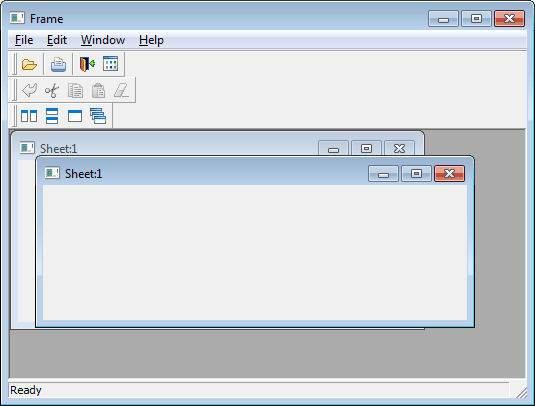
The frame
The MDI frame is the outside area of the MDI window that contains
the client area. There are two types of MDI frames:
-
Standard
-
Custom
Standard frames
A standard MDI frame window has a menu bar and (usually) a status
area for displaying MicroHelp. The client area is empty, except when
sheets are open. Sheets can have their own menus, or they can inherit
their menus from the MDI frame. Menu bars in MDI applications always
display in the frame, never in a sheet. The menu bar typically has an item
that lists all open sheets and lets the user tile, cascade, or layer the
open sheets.
Custom frames
Like a standard frame, a custom frame window usually has a menu bar
and a status area. The difference between standard and custom frames is in
the client area: in standard frames, the client area contains only open
sheets; in custom frames, the client area contains the open sheets as well
as other objects, such as buttons and StaticText. For example, you might
want to add a set of buttons with some explanatory text in the client
area.
Client area
In a standard frame window, PowerBuilder sizes the client area
automatically and the open sheets display within the client area. In
custom frame windows containing objects in the client area, you must size
the client area yourself. If you do not size the client area, the sheets
will open, but may not be visible.
The MDI_1 control
When you build an MDI frame window, PowerBuilder creates a control
named MDI_1, which it uses to identify the client area of the frame
window. In standard frames, PowerBuilder manages MDI_1 automatically. In
custom frames, you write a script for the frame’s Resize event to size
MDI_1 appropriately.
Displaying information about MDI_1
You can see the properties and functions for MDI_1 in the Browser.
Create a window of type MDI and select the Window tab in the Browser.
Select the MDI frame window and select Expand All from the pop-up menu.
MDI_1 is listed as a window control, and you can examine its properties,
functions, and so forth in the right pane of the Browser.
MDI sheets
Sheets are windows that can be opened in the client area of an MDI
frame. You can use any type of window except an MDI frame as a sheet in an
MDI application. To open a sheet, use either the OpenSheet or
OpenSheetWithParm function.
Toolbars
Often you want to provide a toolbar for users of an MDI application.
You can have PowerBuilder automatically create and manage a toolbar that
is based on the current menu, or you can create your own custom toolbar
(generally as a user object) and size the client area yourself.
For information on providing a toolbar, see the section called “Working with Menus and Toolbars” in Users Guide. For more information on sizing the client area, see
Sizing the client area.