Display the arrow for a drop-down
DataWindow edit style
The column for the customer state of residence has a
DropdownDataWindow edit style. This is an extended attribute associated
with the State column in the Demo Database. The (drop-down) DataWindow
with which the column is associated has a list of states and their
two-letter postal codes.
You can make the state selection list visible at all times in your
application or you can display an arrow at all times to indicate that a
selection list is available. Now you change the property for the state
column to show the arrow at all times.
-
Click the state column in the Design view.
Make sure the Properties view displays.
The Properties view displays properties of the column.
-
Click the Edit tab in the Properties view.
You might need to click the arrow keys near the top of the
Properties view to display the Edit tab before you can click it.
Notice that the Style Type selection is DropDownDW. -
Select the Always Show Arrow check box.
Make sure the state column in the Design view is wide enough
to display two characters plus the arrow symbol.An arrow appears next to the state column in the Design and
Preview views. While the column is selected in Design view, you can
make the column wider by holding the cursor over the right edge of
the column until the cursor symbol changes to a double-headed arrow,
then dragging the edge toward the rightmost frame of the
view.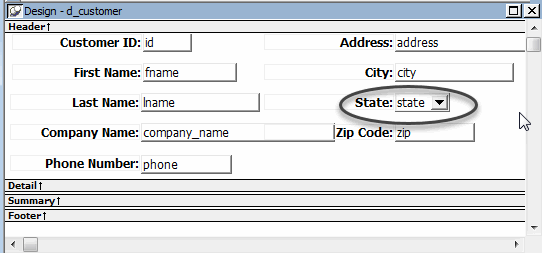
-
Click the Save button in PainterBar1.
-
Click the Close button in PainterBar1.