Test
the new sheet window
-
Click the Run button (
 ) in the PowerBar.
 If PowerBuilder prompts you to save changes, click Yes.
-
Type dba in the User ID box.
Type sql in the Password box and click OK.
The database connection is established, and the MDI frame for
the application displays. -
Select File>Report>Customer Location from the menu
bar.The Customer Location window displays. The current entry in
the drop-down list is AB for Alberta.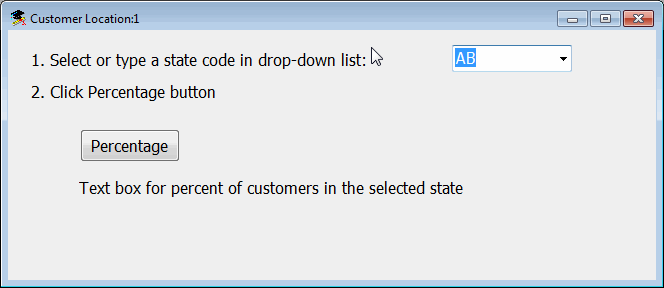
-
Click the Percentage button.
Because there is only one customer in Alberta, the
exc_low_number user-defined exception is thrown. The message from
the exception is displayed in a message box that was defined in a
CATCH clause in the button Clicked event. -
Click OK to close the message box.
The text in the static text boxes now displays the number of
customers in Alberta and the total number of customers in the
database. The text in the editable text box tells you the value was
not calculated and prompts you to select another state.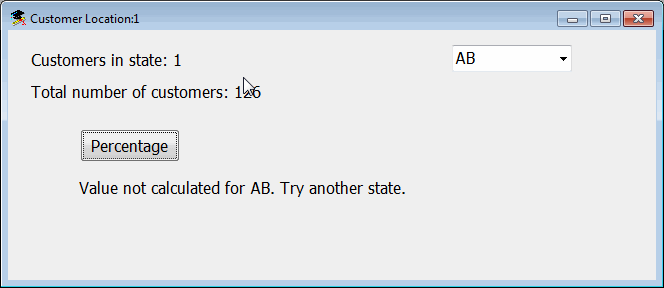
-
Select or type CA in the drop-down list box and click the
Percentage button.The results from the database show 10 customers in California
for a total of 7.9% of all customers in the database. The percentage
may be different if you have modified the database.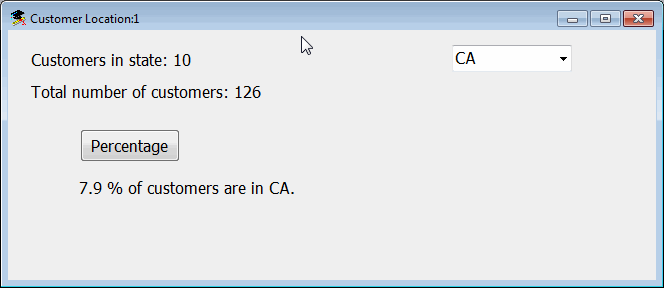
-
Type Ohio into the drop-down list box and click the Percentage
button.When you lose focus from the drop-down list box by clicking
the Percentage button control, the LoseFocus event fires. This event
calls the ue_modified event that throws the exc_bad_entry
user-defined exception. The exception message tells you to use a
two-letter postal code for the state name. -
Click OK to close the message box, type US in the drop-down
list box, and click the Percentage button.Because no rows are found in the database with US as the state
code, the exc_no_rows exception is thrown. A message displays
indicating no rows have been returned and suggests reasons why that
might be the case. A more robust application might compare the typed
text to a list of state codes and throw the exc_bad_entry exception
instead, letting you know that US is not a state code. -
Click OK to close the message box.
-
Right-click the database icon for the Demo Database, a red and
yellow SQL symbol ( ), in your Windows System Tray.
 -
Select Shut down from the pop-up menu, and click Yes in the
Warning message box that displays.This shuts down the connection to the Demo Database.
-
Select or type AB again in the drop-down list box and click
the Percentage button.The message from the exc_no_rows exception object displays for
Alberta because the connection to the database was closed. To obtain
results again, you need to terminate the application and restart it.
PowerBuilder reestablishes a connection to the database at runtime
when you restart the application. -
Click OK to close the message box and select File>Exit from
the application menu to return to the development
environment.The Database painter and the Database Profile painter might
still list the database connection as being open. In this case you
can use either painter to disconnect and reconnect to the database
at design time.