Rolling back to an earlier version of app
Suppose you have deployed four versions: 1.01, 1.02, 1.03, &
1.04, and now want to roll back to 1.02.
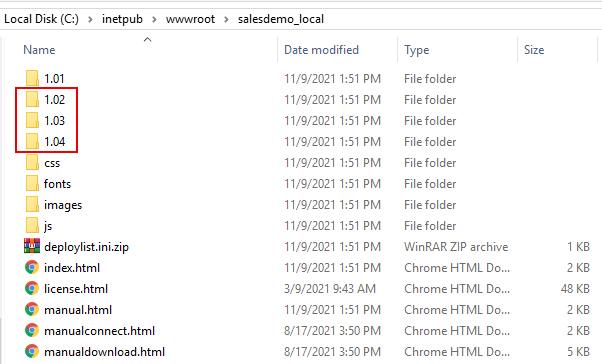
Step 1: Go to the Web server Web root and make a backup of the
versions that you are going to roll back to or undeploy in the
subsequent steps.
In this example, back up 1.02, 1.03, & 1.04 folders.
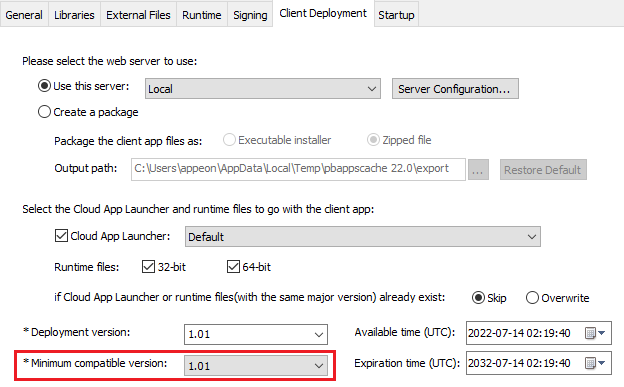
Step 2: Go to the Client
Deployment tab of the PowerClient project painter and make
sure Minimum compatible version is
equal to or earlier than the version that you want to roll back
to.
In this example, 1.02 or 1.01 must be selected.
Step 3: If you have made changes to Minimum compatible version, then click the
Deploy PowerClient Project button
( ) in the toolbar.
This will refresh the minimum compatible version on the server
(and deploy files to the current Deployment
version; the current deployment version should be 1.04 in
this example).
Step 4: Undeploy any version that is newer than the version you
want to roll back to, because the latest available version will be
downloaded by default.
In this example, you will have to undeploy 1.03 & 1.04,
otherwise the client side will not download 1.02 but download 1.03 or
1.04.
For how to undeploy from the server, see Undeploying the
PowerClient project.
Step 5: Uninstall the current version from the client
machine.
Although you can deploy multiple versions on the server, there
will be only one version (the latest available version) installed on
the client machine.
For how to uninstall from the client machine, see Uninstalling the
PowerClient project.
Step 6: Run the application.
The latest available version (in this example 1.02) will be
downloaded and installed from the server.