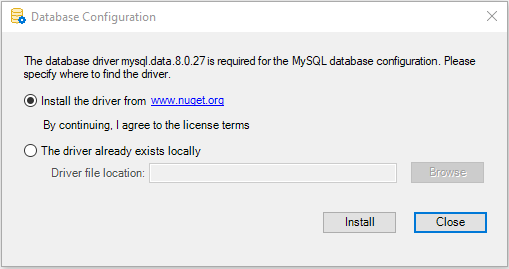
Select the database driver
First of all, you must select the required database driver and
agree to the driver license terms as the driver must be downloaded
from the NuGet website. You must make this selection no matter where
you will create the database connection (in the PowerServer project
painter > Database page, in the
PowerServer C# solution, or in the compiled Web APIs).
To select the required database driver:
-
Select the Database page in
the PowerServer project painter. -
Select the database provider from the Provider list.
-
In the Database driver
option group, click the View License
Terms link to view the license first and then select
the option “I have read and agree to the
license …“.
If you select DB2, MySQL, Oracle,
or Informix from the Provider list, you will be asked to specify a
location for the .NET Core driver or allow PowerBuilder to install the
required driver from the NuGet website.
Note
You can manually download the following .NET Core driver from
the NuGet website or have PowerBuilder automatically download the
driver from the NuGet website:
-
MySql.Data 8.0.27 for MySQL
-
Oracle.ManagedDataAccess.Core 3.21.50 for Oracle
-
IBM.Data.DB2.Core 3.1.0.500 for Informix and DB2
The packages downloaded from the NuGet website will be stored to
%USERPROFILE%.netdbdrives; they will be automatically loaded when
the database connection is created.