Modify and re-deploy the PowerServer project
Step 1: Add the INI file CloudSetting.ini to the Files preloaded in uncompressed format
section under the Application
page.

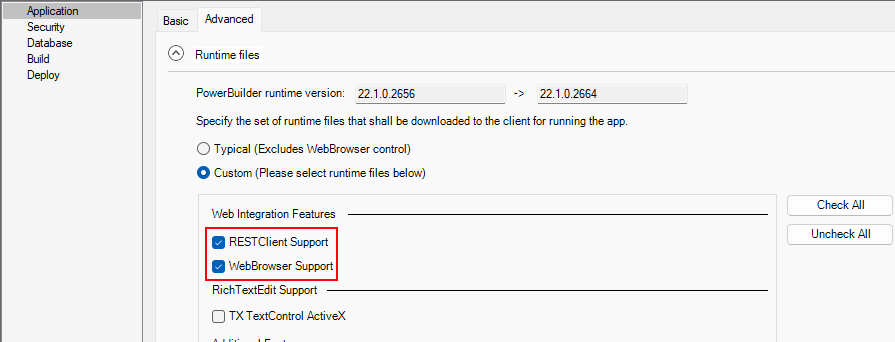
Step 2: Select RESTClient
Support and WebBrowser
Support (Used for scenario 3) under the Runtime files group in the Application page > Advanced tab.
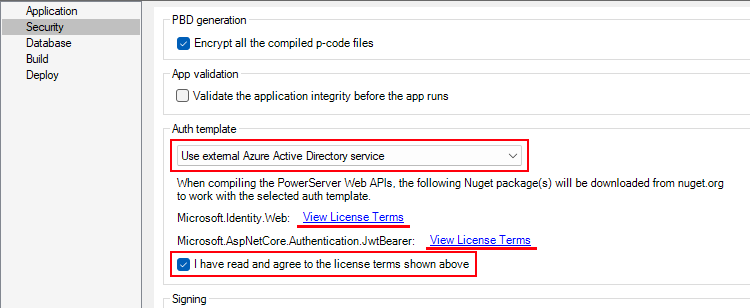
Step 3: Double check that Use external
Azure Active Directory service is selected from the
Auth Template list box in the
Security page.
Step 4: Save the changes and deploy the PowerServer project
(using the “Build & Deploy PowerServer Project” option) so that
the above settings can take effect in the installable cloud
app.
Document get from Powerbuilder help
Thank you for watching.
Subscribe
Login
0 Comments
Oldest