Hosting environment: Development
For quick running and testing purpose, you can directly start the
Web APIs with the built-in Kestrel server on the local development
machine, immediately after the PowerServer Web APIs is generated during
the build & deploy process.
To start PowerServer Web APIs on Kestrel in the development
environment:
-
Make sure your development PC can connect to the NuGet site
(https://www.nuget.org), so
that the packages required for compiling and running the Web APIs can
be successfully downloaded from the NuGet site. -
Open the PowerServer project painter, select Deploy > Basic tab, and then select Within IDE as the target run mode. A local
Kestrel server will be automatically configured and run within the
PowerBuilder IDE.-
The local Kestrel server is configured by default. You can
directly use the default settings or modify the host name, port
number, and/or HTTP/HTTPS connection method. You will need to
deploy the project for the changes to take effect. You can also
modify these settings in the generated PowerServer C# Solution
> ServerAPIs project >
Properties > launchSettings.json
> “applicationUrl” setting and
then restart Web APIs for the changes to take effect. These
settings will be used when the local Kestrel server starts within
the PowerBuilder IDE or in the Development hosting environment. -
The App URL and the Web API site URL are automatically
generated based on the host name, port number, and connection
method (the client app will be deployed with the Web API by
default).Note
When deploying to the local Kestrel server, the static
files (including the client app, launcher, and runtime) are
deployed to the wwwroot folder in the project directory by
default (for example,
%username%source
epossalesdemo_cloudServerAPIswwwroot).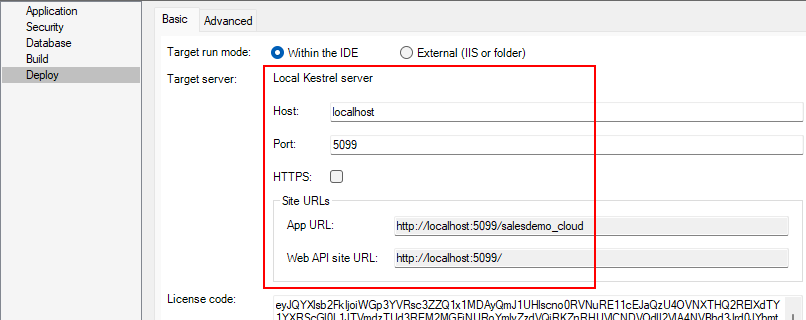
-
-
Click Build & Deploy
Project on the toolbar in the PowerBuilder IDE. -
Click Run Project on the
toolbar in the PowerBuilder IDE. The Kestrel server and the
PowerServer Web APIs will be automatically run on the local
machine.Make sure the server console window displays the following
messages:-
“Now listening on:
http://localhost:[port]” — This is the root URL of the
Kestrel server and the PowerServer Web APIs. -
“Application started…” —
The Web APIs is started successfully. -
“Hosting environment:
Development” — The Web APIs is currently running in
the development
environment.
When the Kestrel server and Web APIs are running successfully,
the client app automatically starts (you might be prompted to download
and install the launcher for the first time).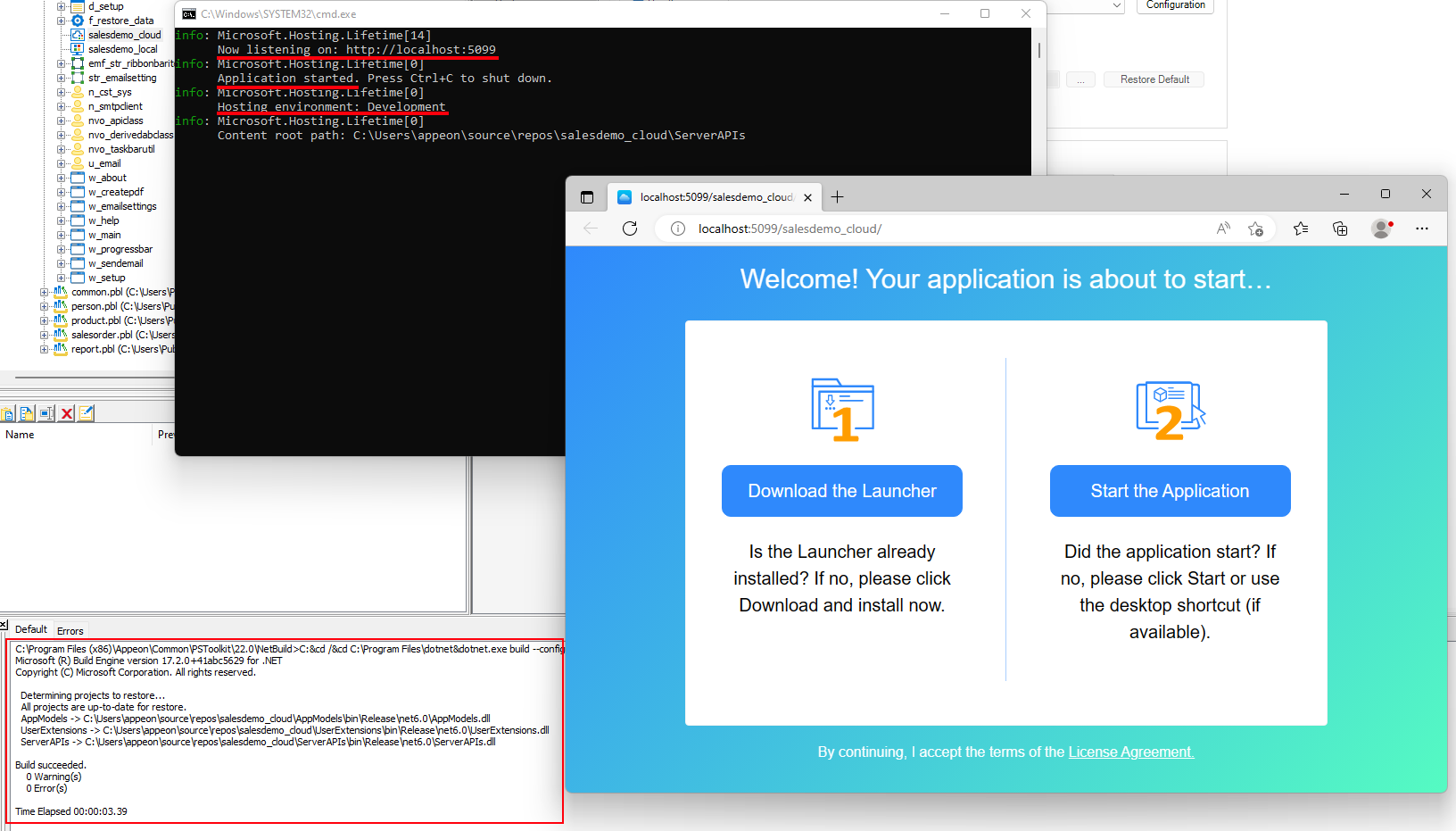
-