ErrorCode: 404; Error: Not Found
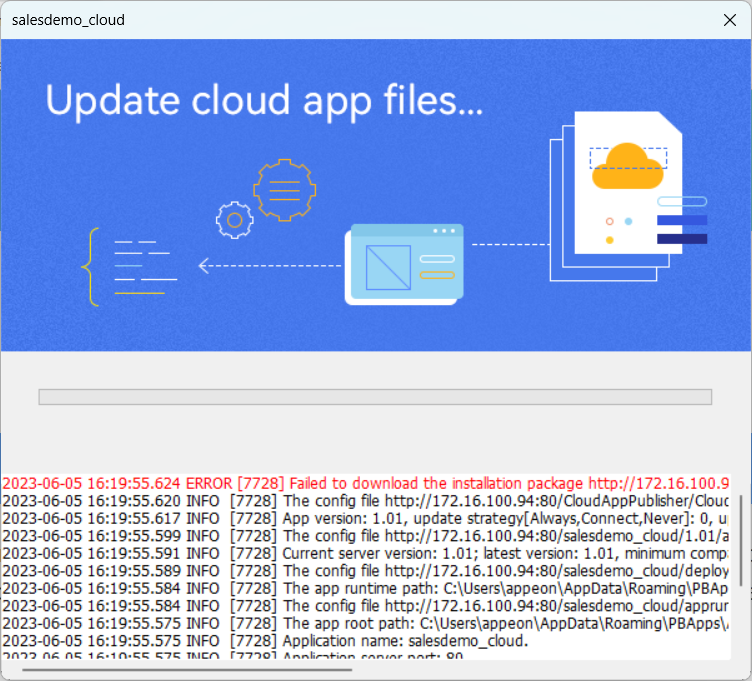
The following error occurs when trying to run the installable
cloud app for the first time.
|
1 |
Failed to download the installation package http://x.x.x.x:yy/CloudAppPublisher/CloudAppInstall 22.0/CloudAppLauncher_Installer.exe; ErrorCode: 404; Error: Not Found. |
Or
|
1 |
Failed to download the config file http://x.x.x.x:yy/CloudAppPublisher/CloudAppInstall 22.0/LauncherSetup.json; ErrorCode: 404; Error: Not Found. |
Cause 1 &
solution:
The cloud app launcher has not been uploaded to the
server.
To resolve the error, upload the app launcher and runtime
files according to the instructions in Upload
the cloud app launcher and the runtime files; and then run
the application again.
Cause 2 &
solution:
The installable cloud app or launcher starts to download files
from the server while the server is still in the processing of
starting. The download request for the file will time out.
To resolve the error, wait until the server has started, and
then run the installable cloud app again.
Cause 3:
The “CGI-exe” handler mapping
in the IIS server blocks the download of the installation program of
the cloud app launcher (CloudAppLauncher_Installer.exe).
The CGI option is not installed in IIS by default, but if you
have installed the CGI option and enable the “CGI-exe” handler mapping in IIS, you will
need to disable it before you can download the installation program
of the cloud app launcher.
Solution:
To disable the “CGI-exe”
handler mapping in IIS:
-
In the IIS Manager, select the web site where the
application is hosted. -
In Features View, double
click Handler Mappings.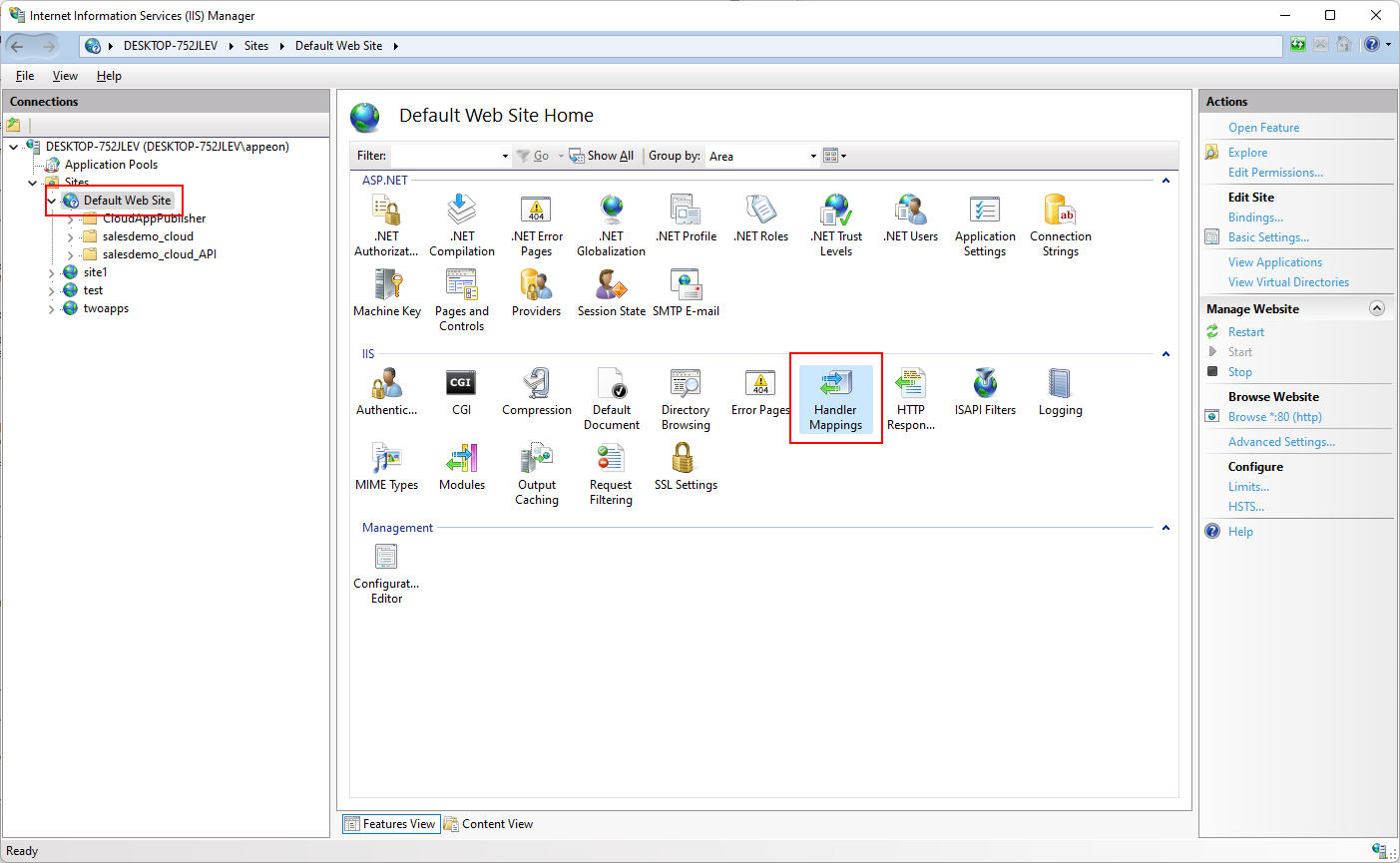
-
Select CGI-exe from the
list and then click Edit Feature
Permissions….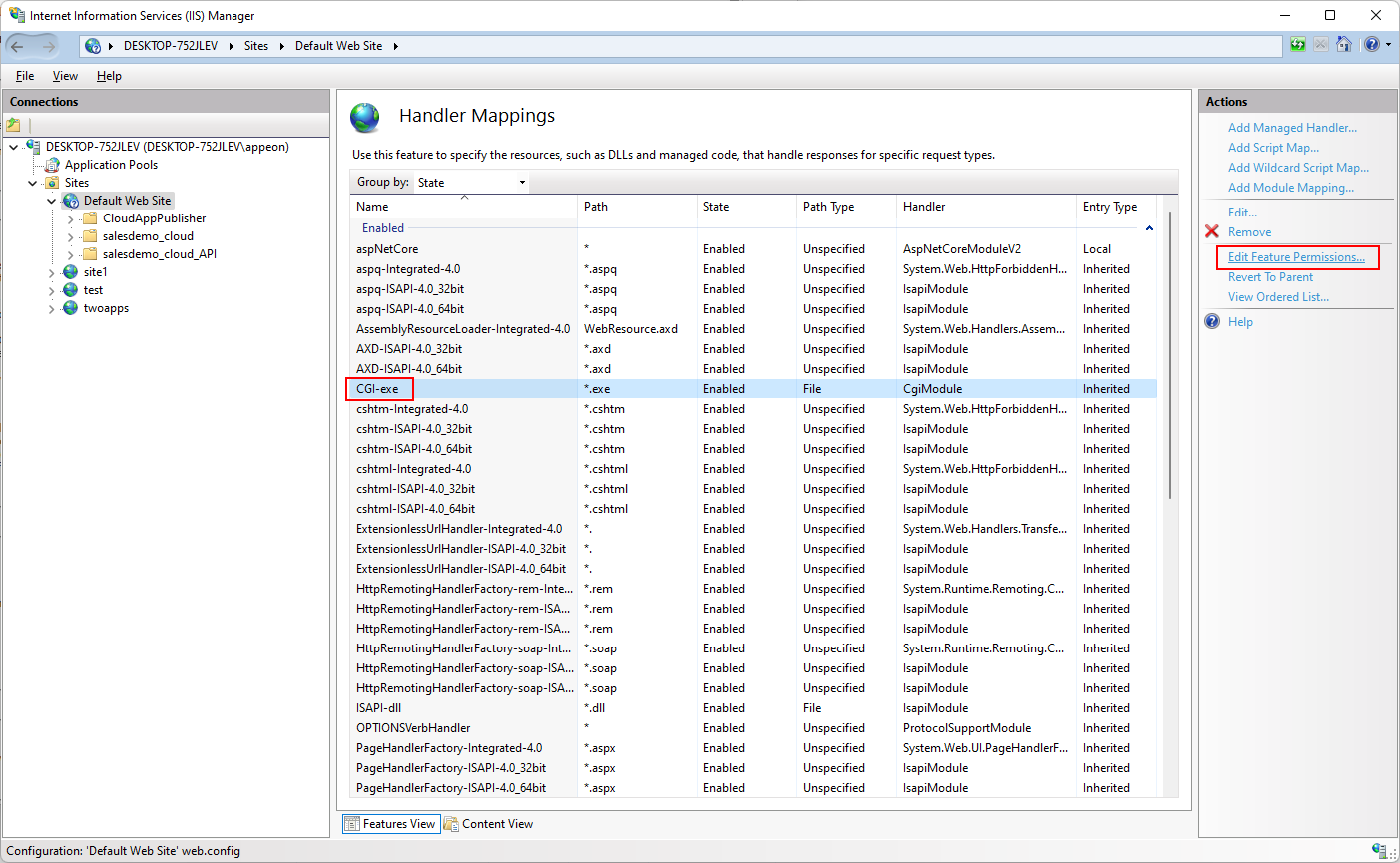
-
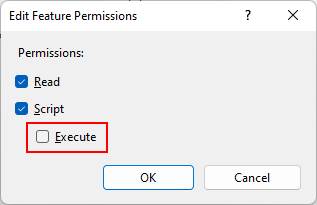
Uncheck Execute and click
OK.“CGI-exe” handler will be disabled for the current
website.