Code some
Help events and preview the window
Where you are
Change the tab order on
the window
> Code some Help
events and preview the window
Write the script to
open the window
Now you use the Script view to add context-sensitive Help messages
to the SingleLineEdit controls that you placed on the login window, and
you preview the window.
Using the Script view
The Script view has three drop-down list boxes.
The first drop-down list box displays the list of available controls
for the current object plus two special entries, Functions and Declare.
The contents of the second drop-down list box depend on the selection in
the first drop-down list box. The third drop-down list box contains all
ancestor objects of the current object, if any.
|
Selection in first drop-down list box |
Contents of second drop-down list box |
Contents of third drop-down list box |
|---|---|---|
|
An object or control name |
List of events for the selected object or |
All of the ancestor objects of the current object, if |
|
Functions |
List of editable functions. Displays (New Function) |
All ancestor objects with functions having the same |
|
Declare |
List of declaration types: global, shared, and |
Empty |
If the Script view is not currently displayed in your Window
painter, you can open it by double-clicking an object in the Layout
view.
-
Double-click the top SingleLineEdit control in the Layout
view.The object name, sle_userid, appears in the first drop-down list
box in the Script view. -
Select the Help event in the second drop-down list box in the
Script view.The Help event has the prototype: help (integer xpos, integer
ypos) returns long [pbm_help] -
Type the following line of PowerScript code in the script
area:1ShowPopupHelp("pbtutor.chm", this, 100)You can find the pbtutor.chm file in the Tutorial directory. The
second argument refers to the current SingleLineEdit control, and the
last argument refers to a context ID in the pbtutor.chm file.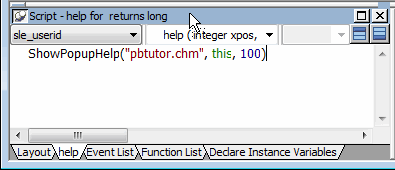
As you type text in the Script view, notice that PowerBuilder
changes the text colors to show what kind of syntax element you have
entered (such as keywords, variables, and comments). -
Select sle_password from the first drop-down list box in the
Script view.Select the Help event in the second drop-down list box.
PowerBuilder compiles the code you typed for the Help event of
the sle_userid SingleLineEdit text box. You now add a Help event for
the sle_password SingleLineEdit text box. -
Type the following lines in the script area:
1ShowPopupHelp("pbtutor.chm", this, 200) -
Select File>Run/Preview from the menu bar
or
Click the Run/Preview Object in the PowerBar.
The Run dialog box displays. Be sure the Objects of Type list
box displays Windows and the w_welcome object is selected.Previewing the window
You can preview the window without running scripts by
selecting Design>Preview on the menu bar or the Preview button in
PainterBar1 (which uses the same icon as the Run/Preview Object
button in the PowerBar). However, you must run scripts to view the
results of the Help event scripts you just entered. -
Click OK.
A message box prompts you to save your changes.
-
Click Yes.
The login window appears as it would at runtime. If you do not
like the window layout, you can change the size, location, and fonts
of the window controls when you go back to the Window painter
workspace.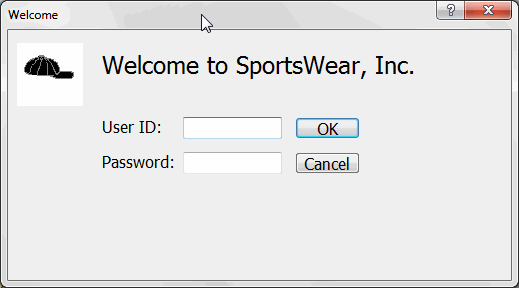
-
Click the question-mark button in the login window title
bar.Click inside the sle_userid SingleLineEdit text box.
A message displays: Type your user ID here. This text is
associated with context ID 100 in the pbtutor.chm file. You entered
the context ID as an argument of the ShowPopupHelp call for the
sle_userid Help event. -
Click anywhere in the window to close the message.
Click inside the sle_password SingleLineEdit text box.
Press F1.
A message displays: Type your password here. This text is
associated with context ID 200 in the pbtutor.chm file. -
Click anywhere in the window to close the message.
Click the close button in the login window title bar.
You return to the Window painter workspace.
Later you add code to the Clicked event for the Cancel button
that closes the application. -
Close the Window painter by clicking the close button in
PainterBar 1.The close button is labeled with an x.