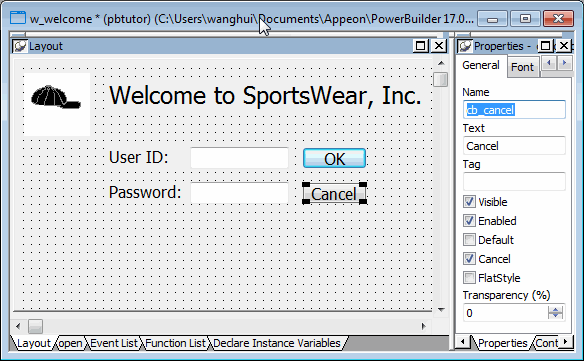
Specify properties of the
CommandButton controls
Now you define the properties of the CommandButton
controls.
-
Select the top CommandButton control.
The General page of the Properties view displays properties of
the CommandButton control. -
Type cb_ok in the Name text box on the Properties view General
page.Type OK in the Text text box.
Select the Default check box.
This step changes the default name of the control to something
more descriptive and adds a text label (OK) to the button. Because
you selected the Default check box, when an application user presses
the Enter key, the Clicked event for this button will be triggered.
(The user does not have to click the button itself for the event to
be triggered.) -
Select the bottom CommandButton control.
Type cb_cancel in the Name text box.
Type Cancel in the Text text box.
Select the Cancel check box.
Because you selected the Cancel check box, when an application
user presses the Esc key, the Clicked event for this button will be
triggered.