Add a workspace to SVN
You can add a PowerBuilder workspace to the SVN source control
system from the PowerBuilder IDE. Make sure all of your source code
for the workspace is located under the same directory as the workspace
(*.pbw) file or under its sub-directory.
To add a PowerBuilder workspace to the SVN source control
system:
-
Right-click the workspace in the System Tree and select Add
to Source Control from the pop-up menu. -
In the Add to Source Control dialog box, select Subversion
(SVN) as the source control provider for the current workspace and
click OK.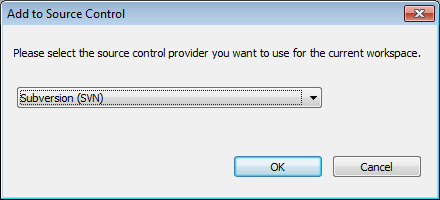
-
In the SVN Login dialog box, input the information required
by the source control system. If the login information has been
input before, they will be filled in automatically.Input the URL of the SVN source control repository. The name
of the current workspace is automatically displayed and a folder
will be created with this name for storing this workspace on the
server. Notice that the URL for the workspace will be the server
repository URL + the workspace folder name. Use this complete URL
when downloading the workspace.Select an authentication type. Token is not supported for
SVN currently.Type in your user name and password for the SVN source
control system.Click Test Connection to make sure connection is successful
and then click OK.Specify the encoding format for the source code files in
“ws_objects”. You can select from: ANSI/DBCS, HEXASCII, and
UTF8.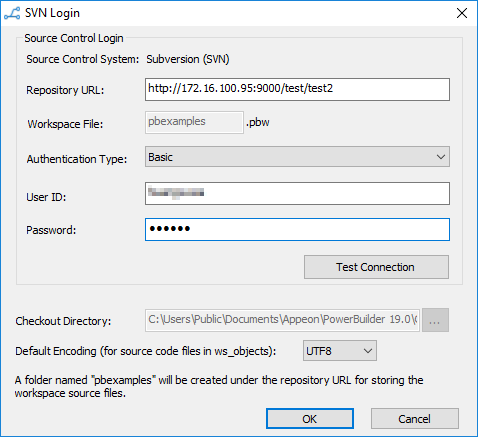
After connecting with the source control system
successfully, the Add to Source Control dialog box displays
listing all the files for the workspace that are not currently
under source control. You cannot add files that are already under
source control.A “ws_objects” folder is automatically created under the
workspace, for managing the source code file of the PowerBuilder
objects including .srw (for window), .srm (for menu), .sru (for
user object), .srd (for DataWindow), etc. The “ws_objects” folder
must be added to source code, in order to manage the source code
at object level.All of the source code for the workspace must be located
under the same directory as the workspace (*.pbw) file or under
its sub-directory.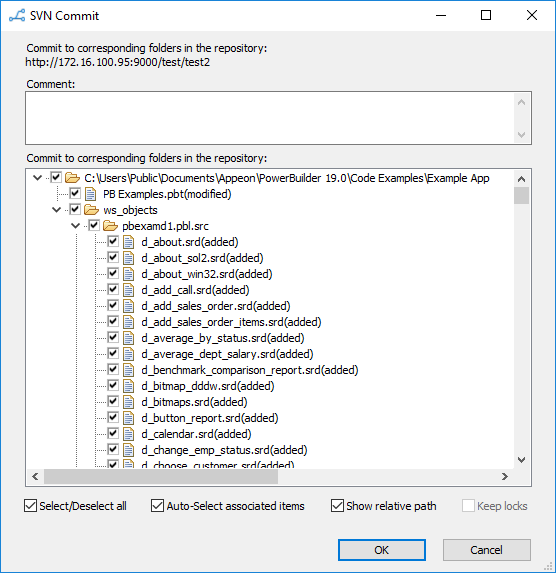
-
In the Add to Source Control dialog box, select the files
and folders (especially “ws_objects”) and click OK.PowerBuilder starts uploading the selected files and folders
to the source control system. After the file or folder is added to
source control, the object in the PowerBuilder System Tree will be
marked with a green dot ( ) in front of it, indicating that its source
code file on the local computer is in sync with the file on the
server.If using proxy server
If using the proxy server, configure the proxy server IP
address and port number in the PB.ini file (by default, the INI
file is located in
C:Users[username]appdatalocalappeonpowerbuilder [version]
in Windows 8.1 or later). Copy the following section to the INI
file and set the appropriate value for the proxy server:[SourceControlProxy]
Url=192.0.0.88
Port=80
Username=
Password=
Timeout=10