Data Explorer sample
Clicking on each TreeView level displays details in a DataWindow
on the right. For example, if you click a name in the TreeView
DataWindow on the left, detailed customer data displays in the
DataWindow on the right.
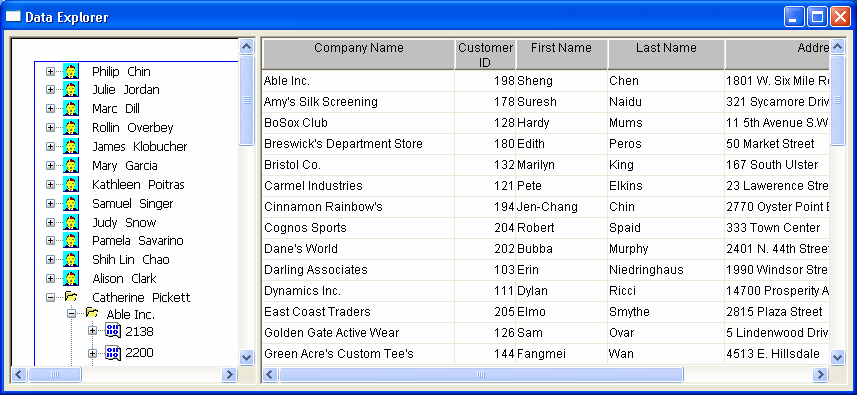
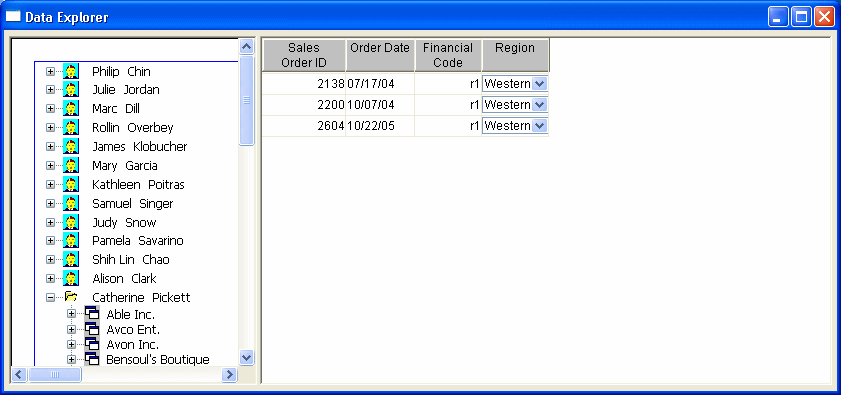
You can click on any TreeView level in the Data Explorer. If you
click a company name in the TreeView DataWindow on the left (for
example, Able Inc., under Catherine Pickett), order information
displays on the right.
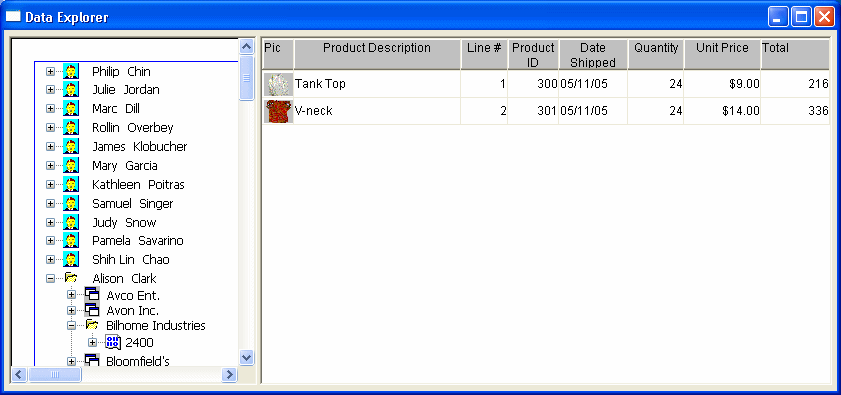
If you click an order ID in the TreeView DataWindow on the left
(for example, order ID 2400, under Bilhome Industries, under Alison
Clark), the customer order information displays on the right.
Data Explorer TreeView
DataWindow
Here is the TreeView DataWindow used in the Data
Explorer.
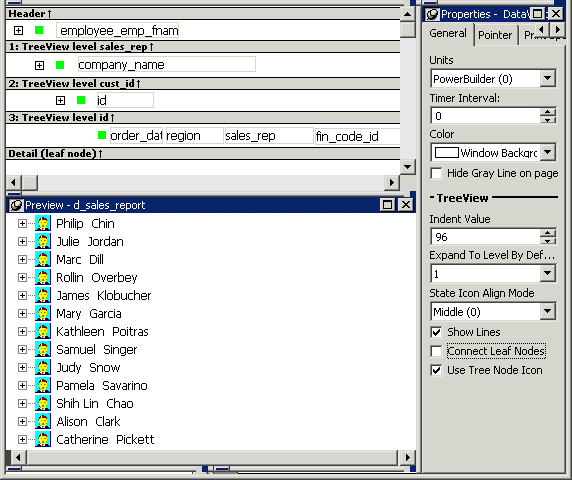
One TreeView DataWindow
The Data Explorer uses one TreeView DataWindow, but
DataWindows that are not TreeView DataWindows also support the Data
Explorer’s functionality.
Data Explorer code
The code in the Clicked event uses GetBandAtPointer to determine
which DataWindow to display. Clicking on some editable items in the
detail DataWindow opens a window in which you can manipulate the
data.
The PopMenu menu object has two menu items that call the
CollapseAll and ExpandAll methods to collapse or expand all the nodes
in the TreeView.