Working with the DataWindow
control in PowerBuilder
To place a DataWindow control in a window:
-
Open the window that will contain the DataWindow
control. -
Select Insert>Control>DataWindow from the menu
bar. -
Click where you want the control to display.
PowerBuilder places an empty DataWindow control in the
window: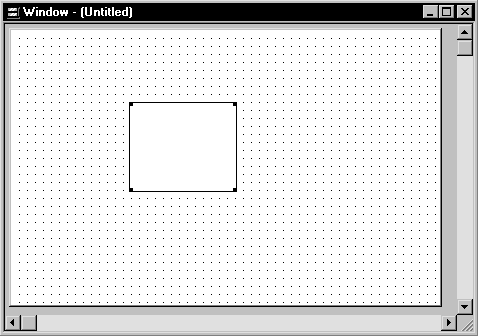
-
(Optional) Resize the DataWindow control by selecting it and
dragging one of the handles.
Specifying a DataWindow
object
After placing the DataWindow control, you associate a DataWindow
object with the control.
To associate a DataWindow object with the control:
-
In the DataWindow Properties view, click the Browse button for
the DataObject property. -
Select the DataWindow object that you want to place in the
control and click OK.The name of the DataWindow object displays in the DataObject
box in the DataWindow Properties view. -
(Optional) Change the properties of the DataWindow control as
needed.
Allowing users to move DataWindow controls
If you want users to be able to move a DataWindow control during
execution, give it a title and select the Title Bar check box. Then
users can move the control by dragging the title bar.