Look at
table definitions in the Demo Database
Now you look at the definitions for the Customer and Product
tables in the Demo Database. This helps you become familiar with the
Database painter and the tables you will use in the tutorial.
What happens when you
connect
To look at the table definitions, you have to connect to the
database. When you connect to a database in the development environment,
PowerBuilder writes the connection parameters to the Windows
registry.
Each time you connect to a different database, PowerBuilder
overwrites the existing parameters in the registry with those for the
new database connection. When you open a PowerBuilder painter that
accesses the database, you automatically connect to the last database
used. PowerBuilder determines which database this is by reading the
registry.
-
Click the Database button (
 ) in the PowerBar.
 PowerBuilder connects to the database and the Database painter
opens. The Database painter title bar identifies the active database
connection.The Objects view of the Database painter displays all existing
database profiles in a tree view under the Installed Database
Interfaces heading. The PB Demo DB V2019R3 database is visible under
the ODB ODBC node in the tree view.If the Objects view is not open
The Objects view is part of the default view layout scheme.
To reset to this scheme, select View>Layouts>Default. You
can also open an Objects view by selecting View>Objects from
the menu bar. -
Expand the PB Demo DB V2019R3 database node in the Objects
view.Notice the folders under the PB Demo DB V2019R3 database
node.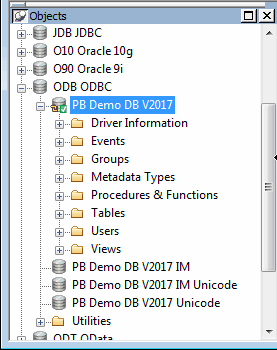
-
Expand the Tables folder.
You see the list of tables in the database.
Table names might have a prefix
The table names in the Select Tables dialog box might have a
prefix such as dba or dbo. This depends on the login ID you are
using. You can ignore the prefix. -
Right-click the customer table and select Add To Layout from
the pop-up menuor
Drag the customer table from the Objects view to the Object
Layout view.Dragging an object from one view to another
When you start dragging an object from the Objects view to
another view, the pointer changes to a barred circle. If you
continue moving the cursor to a view that can accept the object,
the barred circle changes back to a pointer with an additional
arrow symbol in a small box. When you see this symbol, you can
release the object. -
Repeat step 4 for the product table.
Widening the Object Layout view
You can widen the Object Layout view by dragging its
separator bars toward the painter frame. If the Object Layout view
is part of a stack, you might find it easier to separate it from
the stack before you change its size.The Object Layout view shows the two tables you
selected.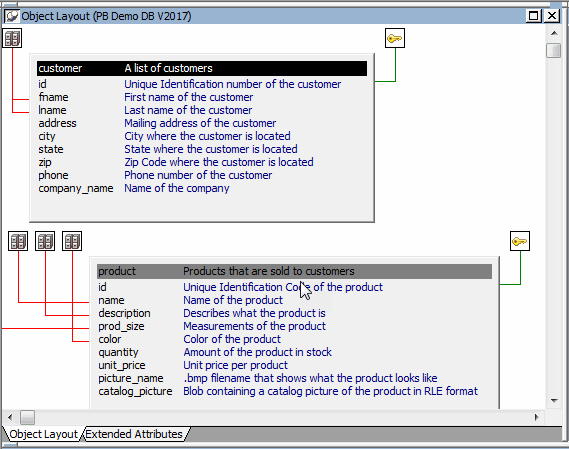
Viewing table data types, comments, keys, and
indexesIn the Object Layout view, you can see a description for
each column, as well as icons for keys and indexes. If you do not
see this, right-click a blank area inside the view and select Show
Comments, Show Referential Integrity, and then Show Index Keys
from the pop-up menu. If you select Show Datatypes, you also see
the data type for each column in the selected tables. -
Right-click the title bar of the customer table in the Object
Layout view and select Alter Table from the pop-up menuor
Right-click the customer table in the Objects tree view and
select Alter Table from the pop-up menu.The Columns view displays the column definitions for the
table. -
Right-click a column in the customer table in the Object
Layout view.Select Properties from the pop-up menu.
In the Database painter, the Properties view is also called
the Object Details view.The title bar and tab headings for the Object Details view
change dynamically depending on the current object selection. The
title bar gives the object type, the database connection, and the
object identifier.The Object Details view for a column has five tabs, one for
general database properties, one for column header information, and
the others for column extended attributes.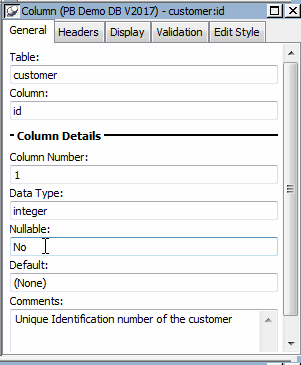
About extended attributes
PowerBuilder stores extended attribute information in system
tables of the database. Extended attributes include headers and
labels for columns, initial values for columns, validation rules,
and display formats.You can define new extended attributes or change the
definitions of existing extended attributes from the pop-up menus of
items in the Extended Attributes view of the Database
painter. -
Close the Database painter.