Add a
library to the search path
Where you are
> Add a library to
the search path
Create a new ancestor
sheet window
Add user events and
event scripts
Add scripts to retrieve
data for the DataWindow controls
Adjust a runtime
setting for sheet window size
Next you add a library to the tutorial application search path. You
must add all libraries on which an application depends.
The library you add to the current application contains some
precoded objects, including the user object (u_dwstandard) that you will
later add to the base sheet window.
-
Right-click the pbtutor target (not the pbtutor application
object) in the System Tree.The pbtutor target contains the pbtutor.pbl and the pbtutor
application. -
Select Library List from the pop-up menu.
The pbtutor target Properties dialog box displays the Library
List page. -
Click Browse.
The Select Library dialog box displays.
-
Navigate to the Tutorial folder.
Select tutor_pb.pbl and click Open.
You return to the Library List page. The tutor_pb.pbl file is
now included in the search path for the tutorial application.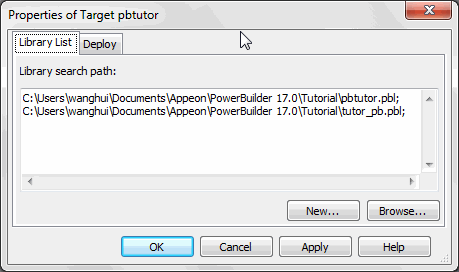
-
Click OK.