Using print preview
You can print the data displayed in the Preview view. Before
printing, you can preview the output on the screen.Your computer must
have a default printer specified, otherwise properties handled by the
printer driver, such as page orientation, are ignored.
To preview printed output before printing
-
Be sure the Preview view is selected (current) and then
select File>Print Preview from the menu bar. -
Print Preview displays the DataWindow object as it will
print.
Using the IntelliMouse pointing device
Using the IntelliMouse pointing device, users can scroll a
DataWindow object by rotating the wheel. Users can also zoom a
DataWindow object larger or smaller by holding down the Ctrl key
while rotating the wheel.
Controlling the display of
rulers
You can choose whether to display rulers around page
borders.
To control the display of rulers in Print Preview
-
Select/deselect File>Print Preview Rulers from the menu
bar.
Changing margins
You can dynamically change margins while previewing a DataWindow
object.
To change the margins in Print Preview
-
Drag the margin boundaries on the rulers.
The following picture shows the left and top margin
boundaries. There are also boundaries for the right and bottom
margins. The picture shows the outline of the margin. If you do
not want to see the outline, clear the Print Preview Shows Outline
check box on the Print Specifications page in the Properties
view.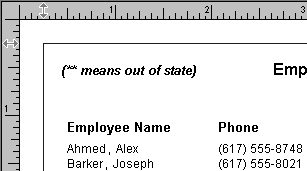
Changing margins at runtime
Using the Modify method, you can display a DataWindow object
in print preview at runtime. While in print preview, users can also
change margins by dragging boundaries. A user event in the
DataWindow control (pbm_dwnprintmarginchange) is triggered when
print margins are changed. Changing margins can affect the page
count, so if you use the Describe method to display the page count
in your application (for example, in MicroHelp), you must code a
script for the user event to recalculate the page count.
Zooming the page
You can reduce or enlarge the amount of the page that displays
in the Print Preview view. This does not affect the printed
output.
To zoom the page on the display screen
-
Select File>Print Preview Zoom from the menu bar.
-
Select the magnification you want and click OK.
The display of the page zooms in or out as appropriate. The
size of the contents of the page changes proportionately as you
zoom. This type of zooming affects your display but does not
affect printing.
Zooming the contents
In addition to zooming the display on the screen, you can also
zoom the contents, affecting the amount of material that prints on a
page.
To zoom the contents of a DataWindow object with respect to
the printed page
-
Select Design>Zoom from the menu bar.
-
Select the magnification you want and click OK.
The contents of the page zooms in or out as appropriate. If
you enlarge the contents so they no longer fit, PowerBuilder
creates additional pages as needed.