The EditMask edit style
Sometimes users need to enter data that has a fixed format. For
example, in North America phone numbers have a 3-digit area code,
followed by three digits, followed by four digits. You can define an
edit mask that specifies the format to make it easier for users to
enter values:

Edit masks consist of special characters that determine what can
be entered in the column. They can also contain punctuation characters
to aid users.
For example, to make it easier for users to enter phone numbers
in the proper format, specify this mask:
|
1 |
(###) ###-#### |
At runtime, the punctuation characters display in the box and
the cursor jumps over them as the user types:

Special characters and
keywords
Most edit masks use the same special characters as display
formats, and there are special considerations for using numeric,
string, date, and time masks. For information, see Defining display formats.
The special characters you can use in string edit masks are
different from those you can use in string display formats.
|
Character |
Meaning |
|---|---|
|
! |
Uppercase – displays all characters with letters |
|
^ |
Lowercase – displays all characters with letters |
|
# |
Number – displays only numbers |
|
a |
Alphanumeric – displays only letters and |
|
X |
Any character – displays all |
If you use the “#” or “a” special characters in a mask, Unicode
characters, spaces, and other characters that are not alphanumeric do
not display.
Semicolons invalid in EditMask edit styles
In a display format, you can use semicolons to separate
sections in number, date, time, and string formats. You cannot use
semicolons in an EditMask edit style.
Keyboard behavior
Note the following about how certain keystrokes behave in edit
masks:
-
Both Backspace and Shift + Backspace delete the preceding
character. -
Delete deletes everything that is selected.
-
Non-numeric edit masks treat any characters that do not
match the mask pattern as delimiters.
Also, note certain behavior in Date edit masks:
Entering zero for the day or month causes the next valid date to
be entered. For example, if the edit mask is DD/MM/YY, typing 00/11/01
results in 01/11/01. You can override this behavior in the development
environment by adding the following lines to your PB.INI file:
|
1 |
[Edit Mask Behaviors]AutocompleteDates=no |
For deployed applications, the date is completed automatically
unless you provide a file called PB.INI in the same directory as the
executable file that contains these lines. Note that this section must
be in a file called PB.INI. Adding the section to a different INI file
shipped with the application will have no effect.
You cannot use a partial mask, such as dd or mmm, in a date edit
mask. Any mask that does not include any characters representing the
year will be replaced by a mask that does.
The strings 00/00/00 or 00/00/0000 are interpreted as the NULL
value for the column.
Using the Mask pop-up
menu
Click the button to the right of the Mask box on the Mask
property page to display a list that contains complete masks that you
can click to add to the mask box, as well as special characters that
you can use to construct your own mask. For example, the menu for a
Date edit mask contains complete masks such as mm/dd/yy and
dd/mmm/yyyy. It also has components such as dd and jjj (for a Julian
day). You might use these to construct a mask like dd-mm-yy, typing in
the hyphens as separators.
Using masks with “as is”
characters
You can define a mask that contains “as is” characters that
always appear in the control or column. For example, you might define
a numeric mask such as Rs0000.00 to represent Indian rupees in a
currency column.
However, you cannot enter a minus sign to represent negative
numbers in a mask that contains “as is” characters, and the # special
character is treated as a 0 character. As a result, if you specify a
mask such as ###,##0.00EUR, a value such as 45,000 Euros would display
with a leading zero: 045,000.00EUR. Note that you must always specify
a mask that has enough characters to display all possible data values.
If the mask does not have enough characters, for example if the mask
is #,##0.00 and the value is 45000, the result is
unpredictable.
The preferred method of creating a currency editmask is to use
the predefined [currency] – International mask. You can change the
number in parentheses, which is the number of characters in the mask
including two decimal places. When you use this mask, PowerBuilder
uses the currency symbol and format defined in the regional settings
section of the Windows control panel. You can enter negative values in
a column that uses a currency mask.
Using spin controls
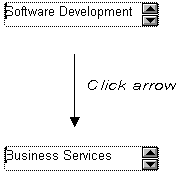
You can define an edit mask as a spin control, a box that
contains up and down arrows that users can click to cycle through
fixed values. For example, you can set up a code table that provides
the valid entries in a column; users simply click an arrow to select
an entry. Used this way, a spin control works like a drop-down list
that displays one value at a time:
For more about code tables, see Defining
a code table.
To use an EditMask edit style
-
Select EditMask in the Style Type box if it is not already
selected. -
Define the mask in the Mask box. Click the special
characters in the pop-up menu to use them in the mask. To display
the pop-up menu, click the button to the right of the Mask
box. -
Specify other properties for the edit mask.
When you use your EditMask, check its appearance and
behavior. If characters do not appear as you expect, you might
want to change the font size or the size of the EditMask.
Using a drop-down
calendar
You can use a drop-down calendar option on any DataWindow column
with an EditMask edit style and a Date, DateTime, or TimeStamp
datatype. The DDCalendar EditMask property allows for separate
selections of the calendar month, year, and date. This option can be
set in a check box on the Edit page of the DataWindow painter
Properties view when a column with the EditMask edit style is
selected. It can also be set in code, as in this example for the
birth_date column:
|
1 |
dw1.Modify("birth_date.EditMask.DDCalendar='Yes'") |