Starting ODBC Driver Manager Trace in the development
environment
To start ODBC Driver Manager Trace in the
PowerBuilder development environment, edit the database profile for
the connection you want to trace, as described in the following
procedure.
To start ODBC Driver Manager Trace by editing the database
profile:
-
Open the Database Profile Setup-ODBC dialog box for the ODBC
connection you want to trace. -
On the Options tab, select the Trace ODBC API Calls check
box. -
(Optional) To specify a log file where you want
PowerBuilder to write the output of ODBC Driver Manager Trace,
type the path name in the Trace File boxor
(Optional) Click Browse to display the pathname of an
existing log file in the Trace File box.By default, if the Trace ODBC API Calls check box is
selected and no trace file is specified, PowerBuilder sends ODBC
Driver Manager Trace output to the default SQL.LOG file.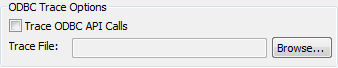
-
Click OK or Apply
or
Right-click on the connected database and select Re-connect
from the drop-down menu in the Database Profiles dialog
box.The Database Profiles dialog box displays with the name of
the edited profile highlighted.PowerBuilder saves your settings in the database profile
entry in the registry in the
HKEY_CURRENT_USERSoftwareSybase19.0DatabaseProfiles
key.For example, here is the relevant portion of a database
profile entry for an ODBC data source named Employee. The settings
that start ODBC Driver Manager Trace (corresponding to the
ConnectOption DBParm parameter) are emphasized.1234DBMS "ODBC"...DbParm "ConnectString='DSN=Emloyee;UID=dba;PWD=00c61737',ConnectOption='SQL_OPT_TRACE,SQL_OPT_TRACE_ON;SQL_OPT_TRACEFILE,C:Tempodbctrce.log' -
Click Connect in the Database Profiles dialog box to connect
to the databaseor
Right-click on the connected database and select Re-connect
from the drop-down menu in the Database Profiles dialog
box.PowerBuilder connects to the database, starts tracing the
ODBC connection, and writes output to the log file you
specified.