Sorting the groups
You can sort the groups in a DataWindow object. For example,
in a DataWindow object showing employee information grouped by
department, you might want to sort the departments (the groups) by
total salary.
Typically, this involves aggregate functions, as described in
Adding summary statistics. In the
department salary example, you would sort the groups using the
aggregate function Sum to calculate total salary in each
department.
To sort the groups
-
Place the mouse pointer on the group header bar (not
inside the band) until the pointer becomes a double-headed
arrow. -
Click.
The General property page for the group displays in the
Properties view. -
Click the ellipsis button next to the Group Sort
property.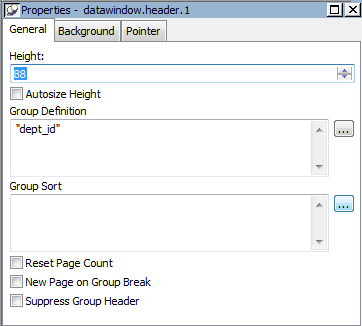
The Specify Sort Columns dialog box displays.
-
Drag the column you want to sort the groups by from the
Source Data box into the Columns box.If you chose a numeric column, PowerBuilder uses the Sum
function in the expression; if you chose a non-numeric column,
PowerBuilder uses the Count function.For example, if you chose the Salary column, PowerBuilder
specifies that the groups will be sorted by the expression
sum(salary for group 1):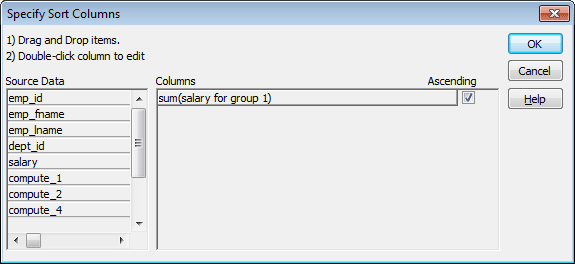
-
Select ascending or descending sort as appropriate.
-
If you want to modify the expression to sort on,
double-click the column in the Columns box.The Modify Expression dialog box displays.
-
Specify the expression to sort on.
For example, to sort the department group (the first group
level) on average salary, specify avg(salary for group
1). -
Click OK.
You return to the Specify Sort Columns dialog box with the
expression displayed. -
Click OK again.
At runtime, the groups will be sorted on the expression
you specified.