Open an
object
Where you are
Manipulate the System
Tree window
Now you open an object created by the Template Application
wizard.
-
Select File>Recent Workspaces from the menu bar, then
MyWorkspace from the cascading menu. -
In the System Tree, expand MyWorkspace, the pbtutor target, and
pbtutor.pbl. -
Double-click the pbtutor Application object
or
Right-click the pbtutor Application object and select Edit from
the pop-up menu.The Application painter opens. It displays different views of
the pbtutor Application object. Your view layout scheme may look
different. To display the default layout, select
View>Layouts>Default.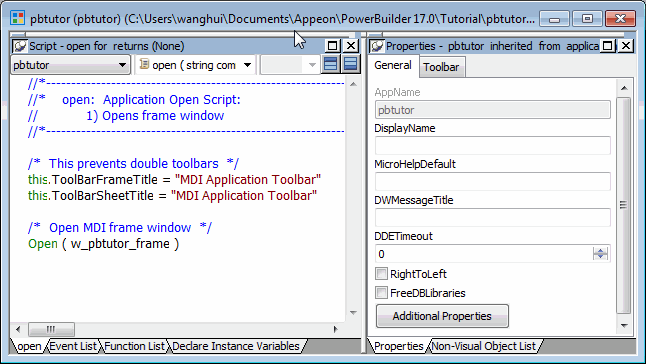
The default Application painter layout displays two stacks of
tabbed panes. The left stack contains tabs for a Script view (Open tab
— it is set to the Open event on the Application object), an Event
List view, a Function List view, and the Declare Instance Variables
view. The right stack contains tabs for the Properties view and a
Non-Visual Object List view. -
Look at the code in the Open event in the Script view.
The PowerScript code that was generated by the wizard in the
Application Object Open event calls a PowerScript function to open the
main window in the application. You will modify this code later in the
tutorial.