PowerBuilder
objects
The basic building blocks of a PowerScript target are
objects:
|
Object |
Use |
|---|---|
|
Application |
Entry point into an application |
|
Window |
Primary interface between the user and a PowerBuilder |
|
DataWindow |
Retrieves and manipulates data from a relational |
|
Menu |
List of commands or options that a user can select in |
|
Global function |
Performs general-purpose processing |
|
Query |
SQL statement used repeatedly as the data source for |
|
Structure |
Collection of one or more related variables grouped |
|
User object |
Reusable processing module or set of controls, either |
|
Pipeline |
Reproduces data within a database or across |
|
Project |
Packages application for distribution to |
These objects are described in more detail in the sections that
follow.
Application object
The Application object is the entry point into an application. It is
a discrete object that is saved in a PowerBuilder library (PBL file), just
like a window, menu, function, or DataWindow object.
The Application object defines application-level behavior, such as
which fonts are used by default for text, and what processing should occur
when the application begins and ends.
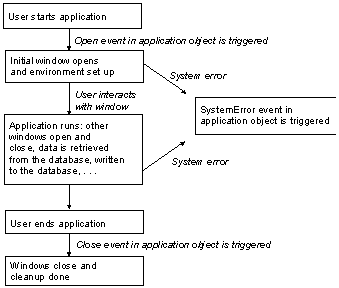
When a user runs the application, an Open event is triggered in the
Application object. The script you write for the Open event initiates the
activity in the application. When the user ends the application, the Close
event in the Application object is triggered.
The script you write for the Close event typically does all the
cleanup required, such as closing a database or writing to a preferences
file. If there are serious errors during execution that are not caught
using PowerBuilder’s exception handling mechanism, the Application
object’s SystemError event is triggered.
Figure: Application life cycle
Windows
Windows are the primary interface between the user and a
PowerBuilder application. Windows can display information, request
information from a user, and respond to the user’s mouse or keyboard
actions.
A window consists of:
-
Properties that define the window’s appearance and behavior (for
example, a window might have a title bar and a Minimize box) -
Events triggered by user actions
-
Controls placed in the window
Windows can have various kinds of controls, as illustrated in the
following picture:
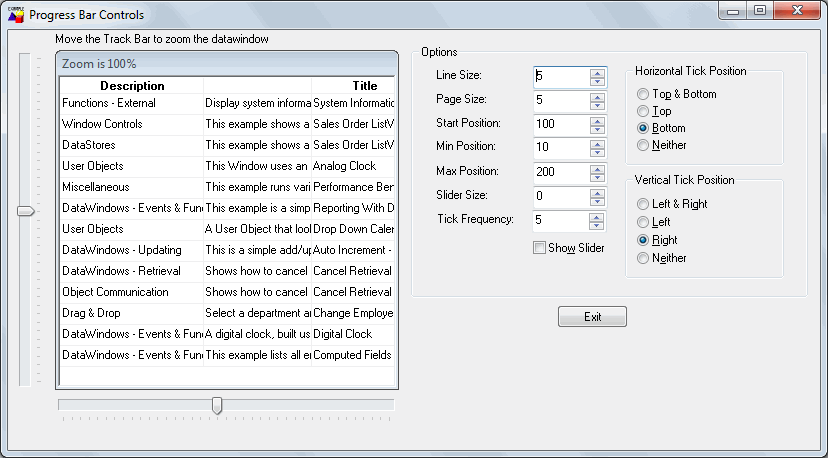
On the left of the window is a DataWindow control with horizontal
and vertical trackbars. On the right is a group box that contains static
text controls (containing descriptive labels), edit mask controls (as they
appear when the SpinControl property is on), a check box, and two smaller
group boxes with radio buttons. Under the main group box is a command
button.
DataWindow objects
A DataWindow object is an object that you use to retrieve and
manipulate data from a relational database or other data source (such as
an Excel worksheet or dBASE file).
Presentation styles
DataWindow objects also handle the way data is presented to the
user. You can choose from several presentation styles. For example, you
can display the data in Tabular or Freeform style.
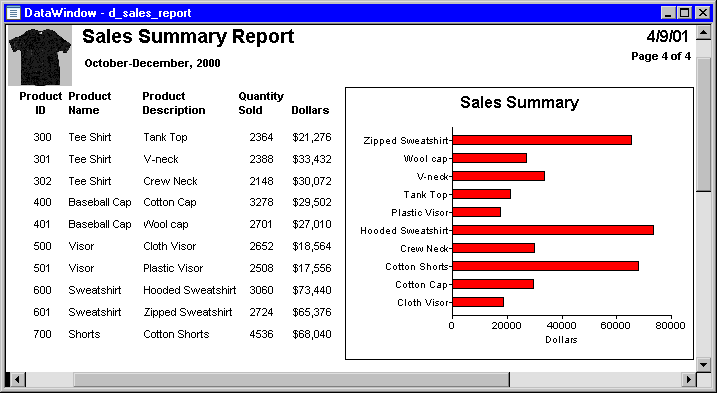
There are many ways to enhance the presentation and manipulation of
data in a DataWindow object. For example, you can include computed fields,
pictures, and graphs that are tied directly to the data retrieved by the
DataWindow.
Display formats, edit styles, and
validation
You can specify how to display the values for each column, and you
can validate data entered by users in a DataWindow object. You do this by
defining display formats, edit styles, and validation rules for
columns.
For example:
-
If a column can take only a small number of mutually exclusive
values, you can have the data appear as radio buttons in a DataWindow
so users know what their choices are.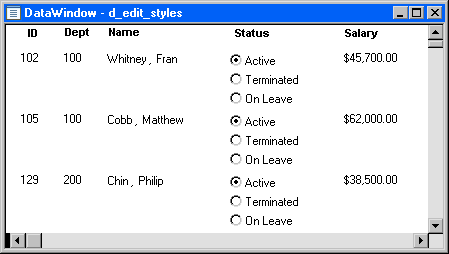
-
If the data includes phone numbers, salaries, and dates, you can
format the display to suit the data.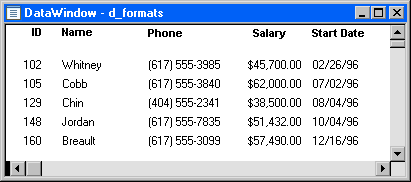
-
If a column can take numbers only in a specific range, you can
specify a simple validation rule for the data. This can spare you from
writing code to make sure users enter valid data.
Web DataWindow
This technique is not recommended and is considered to be obsolete.
An obsolete feature is no longer eligible for technical support and will
no longer be enhanced, although it is still available.
The ability to use this technique has been retained for backward
compatibility.
Menus
Menus are lists of items that a user can select from a menu bar for
the active window. The items on a menu are usually related. They provide
the user with commands (such as Open and Save As on the PowerBuilder File
menu) or alternate ways of performing a task (for example, the items on
the Edit menu in the Window painter correspond to buttons in the
PainterBar).
You can select menu items with the mouse or with the keyboard, or
use accelerator (mnemonic access) keys defined for the items. You can
define your own keyboard shortcuts for any PowerBuilder menu item from a
dialog box that you open with the Tools>Keyboard Shortcuts menu
item.
A drop-down menu is a menu under an item in the menu bar. A
cascading menu is a menu that appears to the side of an item in a
drop-down menu.
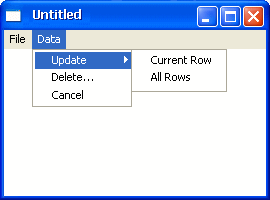
Each choice in a menu is defined as a Menu object in PowerBuilder.
The preceding window shows two Menu objects on the menu bar (File and
Data), three Menu objects on the drop-down Data menu (Update, Delete, and
Cancel), and two Menu objects on the cascading menu beside Update (Current
Row and All Rows).
Global functions
PowerBuilder lets you define two types of functions:
-
Object-level functions are defined for a particular type of
window, menu, or other object type and are encapsulated within the
object for which they are defined. These are further divided into
system functions (functions that are always available for objects of a
certain object class) and user-defined functions. -
Global functions are not encapsulated within another object, but
instead are stored as independent objects.
Unlike object-level functions, global functions do not act on
particular instances of an object. Instead, they perform general-purpose
processing such as mathematical calculations or string handling.
Queries
A query is a SQL statement that is saved with a name so that it can
be used repeatedly as the data source for a DataWindow object. Queries
enhance developer productivity, because they can be coded once but reused
as often as necessary.
Structures
A structure is a collection of one or more related variables of the
same or different data types grouped under a single name. In some
languages, such as Pascal and COBOL, structures are called records.
Structures allow you to refer to related entities as a unit rather
than individually. For example, you can define the user’s ID, address,
access level, and a picture (bitmap) of the employee as a structure called
user_struct, and then refer to this collection of variables as
user_struct.
There are two kinds of structures:
-
Object-level structures are associated with a particular type of
object such as a window or menu. These structures can always be used
in scripts for the object itself. You can also choose to make the
structures accessible from other scripts. -
Global structures are not associated with any object or type of
object in an application. You can declare an instance of the structure
and reference it in any script in an application.
User objects
Applications often have features in common. For example, several
applications might have a Close button that performs a certain set of
operations and then closes the window, or they might have DataWindow
controls that perform the same type of error checking. Several
applications might all require a standard file viewer.
If you find yourself using the same application feature repeatedly,
you should define a user object. You define the user object once and use
it as many times as you need.
User objects can be visual or nonvisual. They can be further divided
into standard or custom user objects. Standard user objects, whether
visual or nonvisual, are system objects that are always available with
PowerBuilder. You can also use controls for external visual objects that
were created outside PowerBuilder. The main types of user objects
are:
-
Visual user objects
These are reusable controls or sets of controls that have a
consistent behavior. For example, a visual user object could consist
of several buttons that function as a unit. The buttons could have
scripts associated with them that perform standard processing. Once
the object is defined, you can use it as often as you need. -
Nonvisual user objects
These are reusable processing modules that have no visual
component. Standard class user objects inherit events and properties
from built-in system objects. You typically use nonvisual objects to
define business rules and other processing that acts as a unit.For example, you might want to calculate commissions or perform
statistical analysis in several applications. To do this, you could
define a custom class user object. To use a custom class user object,
you create an instance of the object in a script and call its
functions.Custom class user objects, which define functions and variables,
are the foundation of PowerBuilder multitier applications. This is
because you typically use nonvisual components for applications that
are run on a server.
Libraries
You save objects, such as windows and menus, in PowerBuilder
libraries (PBL files). When you run an application, PowerBuilder retrieves
the objects from the library. Applications can use as many libraries as
you want. When you create an application, you specify which libraries it
uses.
Projects
You can create Project objects that build executable
applications.